07 Work
Context and memory
The context meter shows how full the session's context window is, and ShanFlow can compact the conversation to make room. Project instructions (CLAUDE.md or AGENTS.md), MCP servers and skills decide what the agent knows and can use in each session.
Check how full the context is#
The title bar shows the context size as a number (for example 44k) and a thin bar. Hover over it, or click it to keep the popover open.
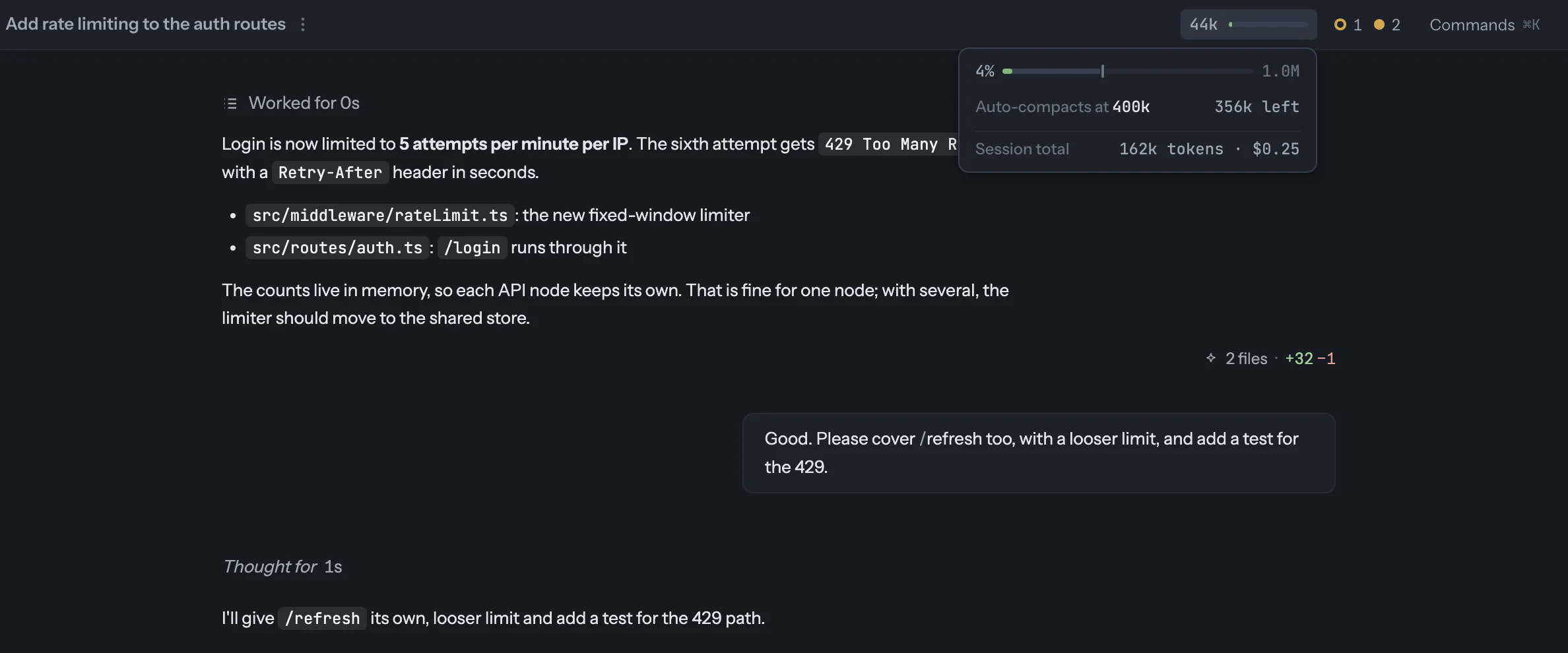
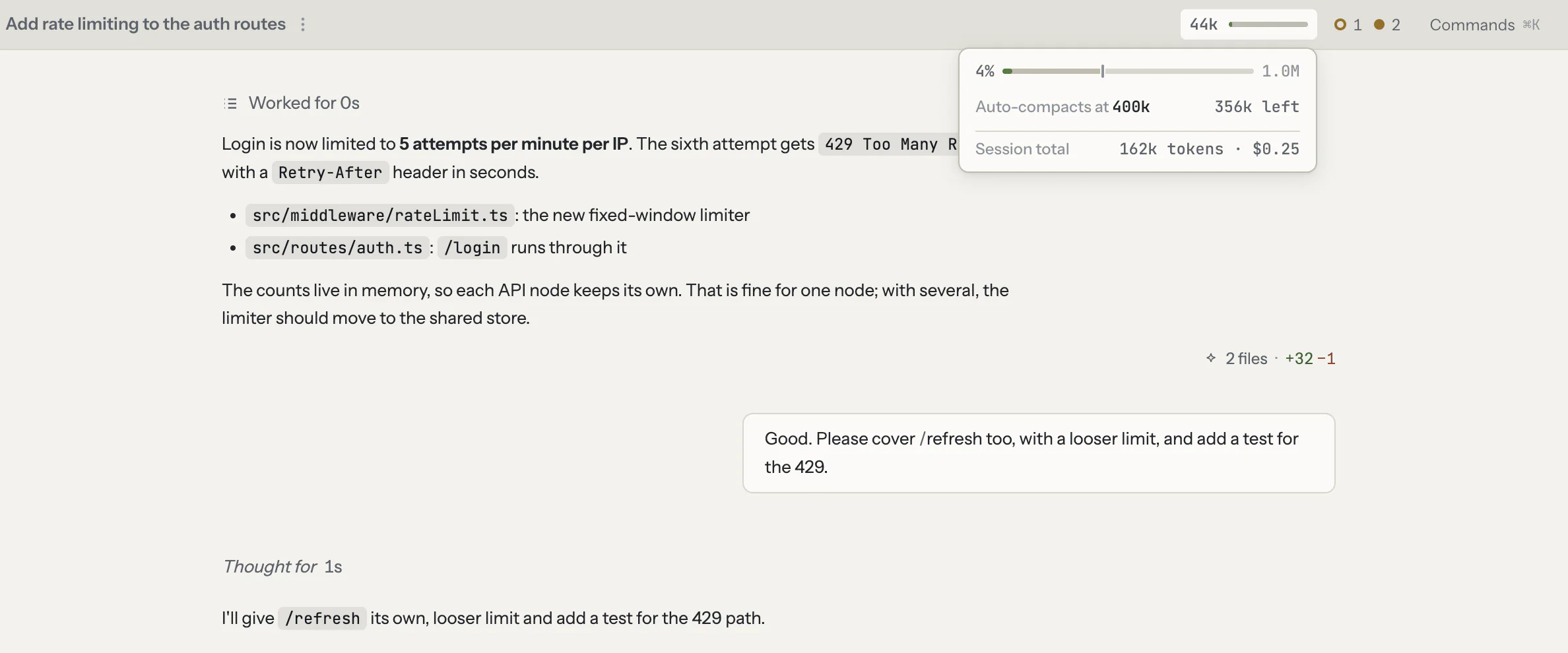
The popover shows:
- The percentage of the window used, a bar, and the window size (for example 1.0M).
- Auto-compacts at the size where the session compacts, and how much is left before that. It reads "on next send" once the session is past that point.
- Last compaction, with how long ago. Hover for the sizes before and after and what started it. Click to open the usage view.
- Last cold write, when the cache was last rebuilt from scratch. Click to open the usage view.
- Session total, an estimate of the tokens used, with the cost, or the provider that bills it.
A Codex session shows the window as Codex reports it. Codex compacts by itself near its limit, so there is no threshold to set. Until Codex reports a window size, the popover shows the token count only.
Compact the conversation now#
Compacting replaces the older conversation with a summary, so the next turns have room.
- Type
/compactin the composer and press Enter. - A divider appears in the thread: Compacted, with the size before and after. Click the divider to read the summary. Copy copies it.
Compact when the agent is idle. The summary drops detail from earlier turns, so compact before a long run rather than after you notice the agent forgetting something.
When a session on a window smaller than 1M gets within 10% of full, a banner offers Compact now. At a full window, sends fail until you compact.
When you quit with large sessions open, the quit sheet offers Compact for each one.
Set the auto-compact threshold#
Sessions on a 1M-token window compact on their own when they reach a threshold. The default is 400k.
- Open the context popover.
- Drag the slider in the bar, or focus it and press the arrow keys, Home or End. The stops run from 300k to 1M in steps of 100k.
This changes the threshold for this session only. To set it for more sessions:
- All projects: Settings › Claude › Compaction › Auto-compact threshold.
- One project: the project's Settings pane, Auto-compact threshold.
A tighter threshold makes each turn cheaper because less context is re-sent. A looser one keeps more of the conversation. On windows below 1M the point is fixed, and the popover says "fixed".
This is a compaction point only. It does not limit spending.
Compact idle sessions automatically#
Turn on Auto-compact idle sessions to summarize a session that has gone idle, so the next send re-sends less. It runs without asking, and it discards detail.
- All projects: Settings › Claude › Compaction › Auto-compact idle sessions.
- One project: the same row in the project's settings (Inherit, on or off).
- One session: open the session's row menu in the sidebar, then Auto-compact when idle › Default, On or Off.
The thread marks each one as Auto-compacted, Auto-compacted while idle or Compacted (yours). Hover the divider for the cause, such as "Hit your auto-compact threshold".
Give the agent project instructions#
Each engine reads one instructions file into every session in a project: CLAUDE.md for Claude and AGENTS.md for Codex. Put the things the agent should always know in it: how to run the tests, code style, what not to touch.
- Type
/memory, or open the project's Settings and choose Instructions. - Each file is listed with its size and when it was last edited. There is one for this project and one for every project (the global file).
- Click Open ↗ to open it. If the file does not exist, click Create ↗ to make it and open it.
ShanFlow opens the file and you edit it in your editor. Start a new session to be sure the agent reads your changes.
Add and manage MCP servers#
MCP servers give the agent extra tools and data sources, such as a database or an issue tracker.
Turn servers on or off for one session#
- Click + in the composer (Add), then MCP servers. The row shows how many are on.
- Click a server to turn it on or off for this session. Enable all and Disable all act on the list you have filtered with Filter servers….
- A change applies from the next turn. In a new session that has not started, it applies from the first turn.
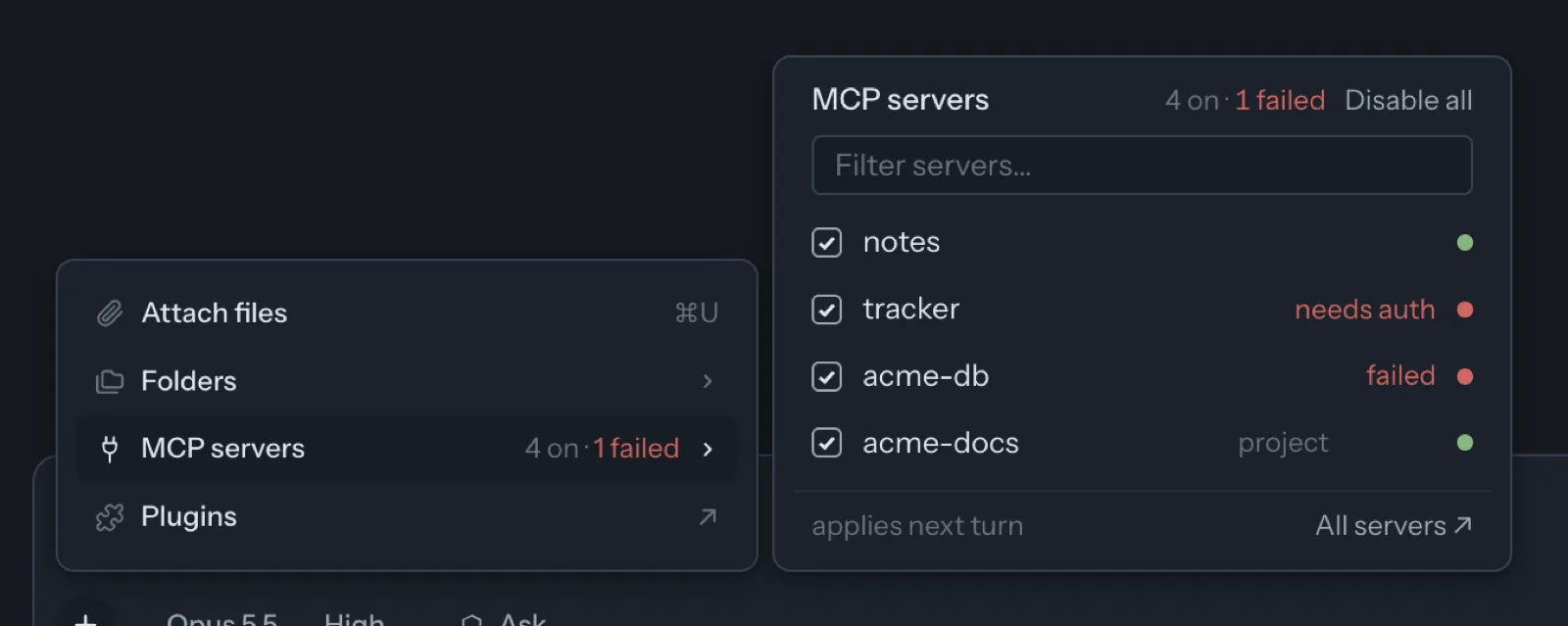
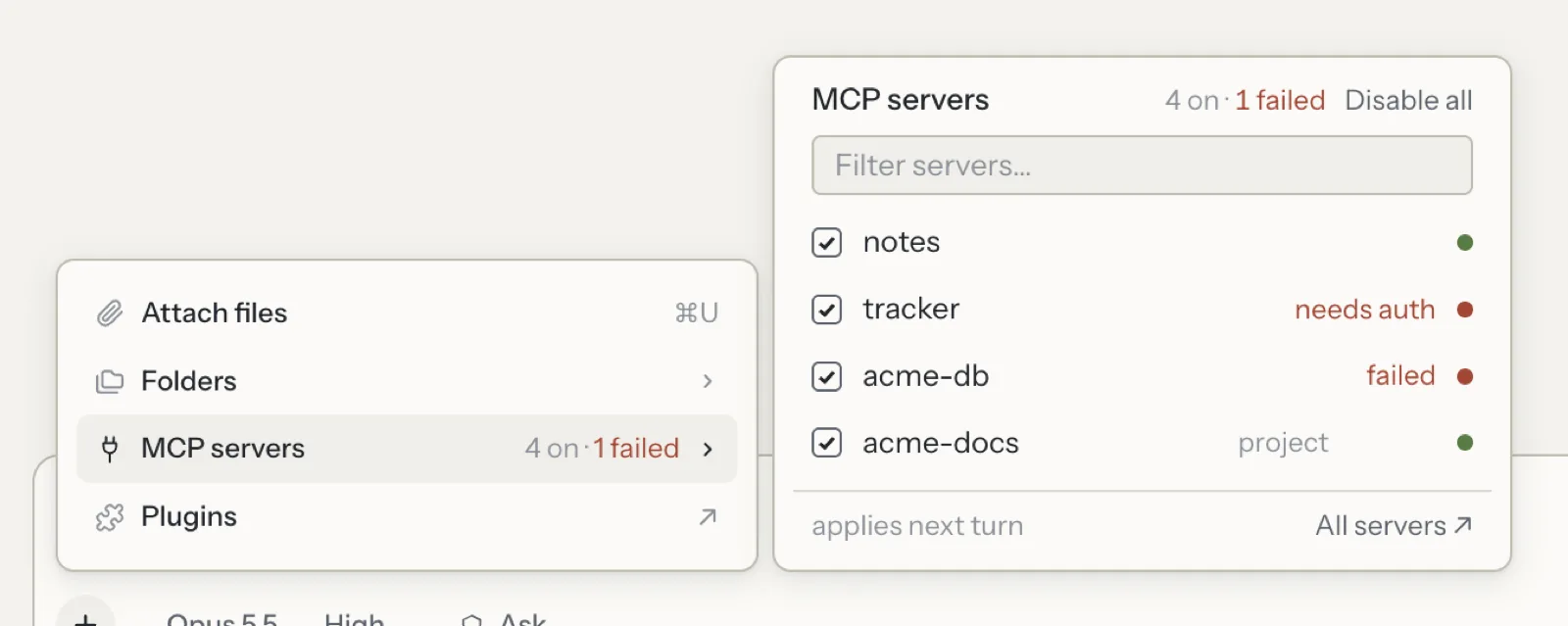
Each server shows a status dot, and a word when something is wrong:
| Status | Meaning |
|---|---|
| Connected | Working. |
| Failed | The server failed to start. Hover for the reason. |
| Needs auth | The server needs you to sign in. |
| Connects on send | It connects when you send the next message. |
| Next turn | It was added after the session started and starts with the next turn. |
Click Test beside a server to check the connection. A project server that nobody has approved yet appears under Not approved, as waiting or rejected. Click it to approve it in the full list.
Add a server#
- In the MCP panel, click All servers ↗. You can also reach it from Settings › Engines › Claude, or the project's Tools pane.
- Click Browse catalog and search ("GitHub", "Postgres", "Slack"), or click Add manually.
- For a manual server, fill in the name, the Transport, and the command or URL. Put secrets in environment variables and refer to them as
${NAME}. - Under Who it's for, choose Local (only you, this project), User (all your projects) or Project (everyone with the repo, saved in
.mcp.json). - Click Add server, or Install server from the catalog. Servers from the community ask you to confirm before they install: they run third-party code on your computer.
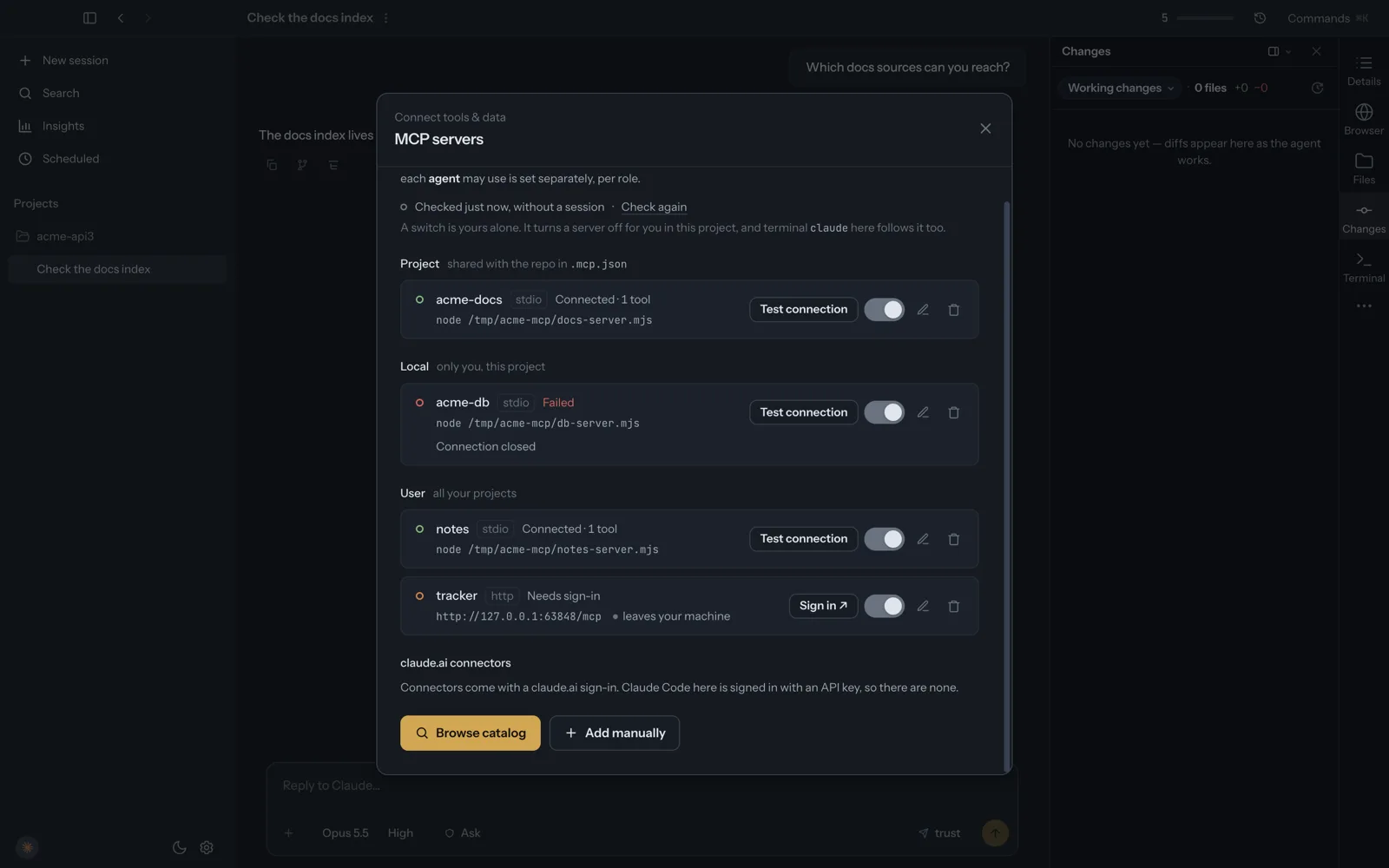
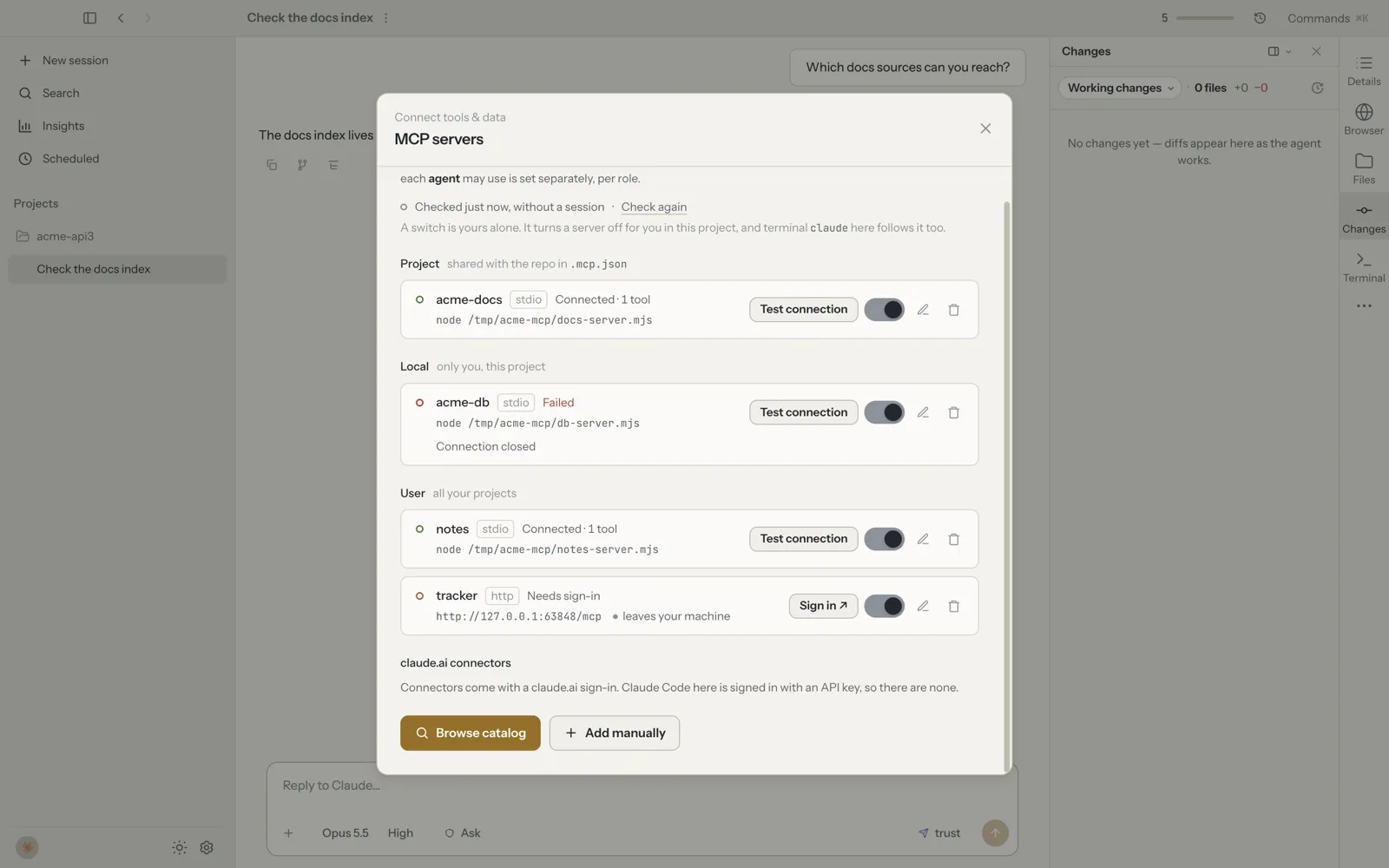
A server you add starts with the next turn. If the new tools do not show up in a session that is already running, start a new session.
Codex reads its servers from its own config. ShanFlow lists them and switches them, but a server set in the project's .codex/config.toml has to be changed there.
See which skills are active#
- Click + (Add) in the composer, then Skills. The row shows how many are on.
- Use Filter skills… to search. Turn a skill on or off with its check.
For Claude, the list is for this session. For Codex, the switches apply to every project. You can also type /skills. For defaults, open Settings › Skills, or the project's Skills pane to choose which skills new sessions there start with.