13 Reference
Settings and shortcuts
Settings has two scopes, App and Project, and the nearest value wins. Almost everything in ShanFlow also has a key; this chapter lists them all.
Open Settings#
- ⌘, (macOS) / Ctrl+, (Windows).
- Click the gear in the sidebar footer.
- macOS: ShanFlow › Settings…. Windows: File › Settings….
- Command palette (⌘K / Ctrl+K): type "Settings".
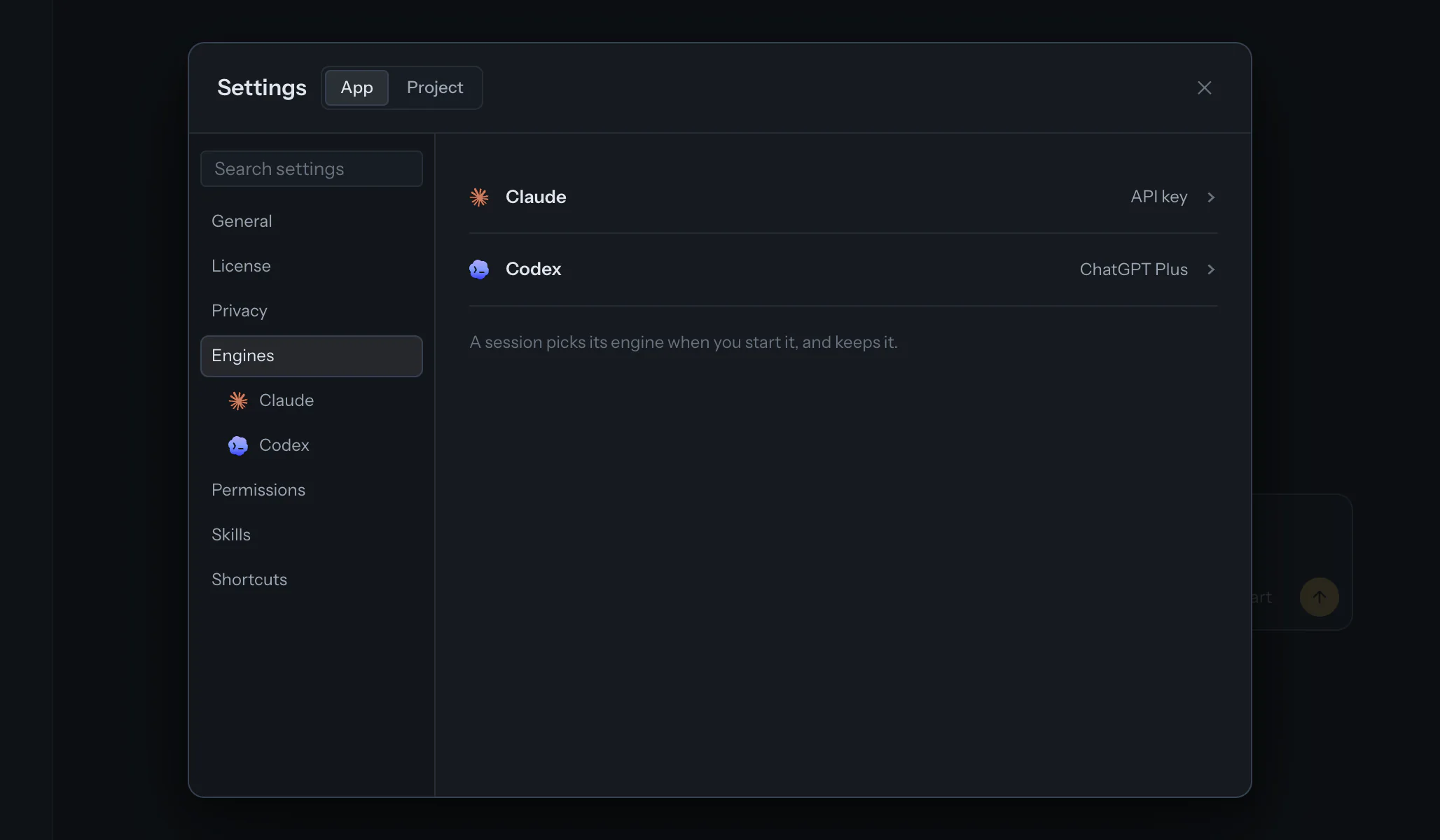
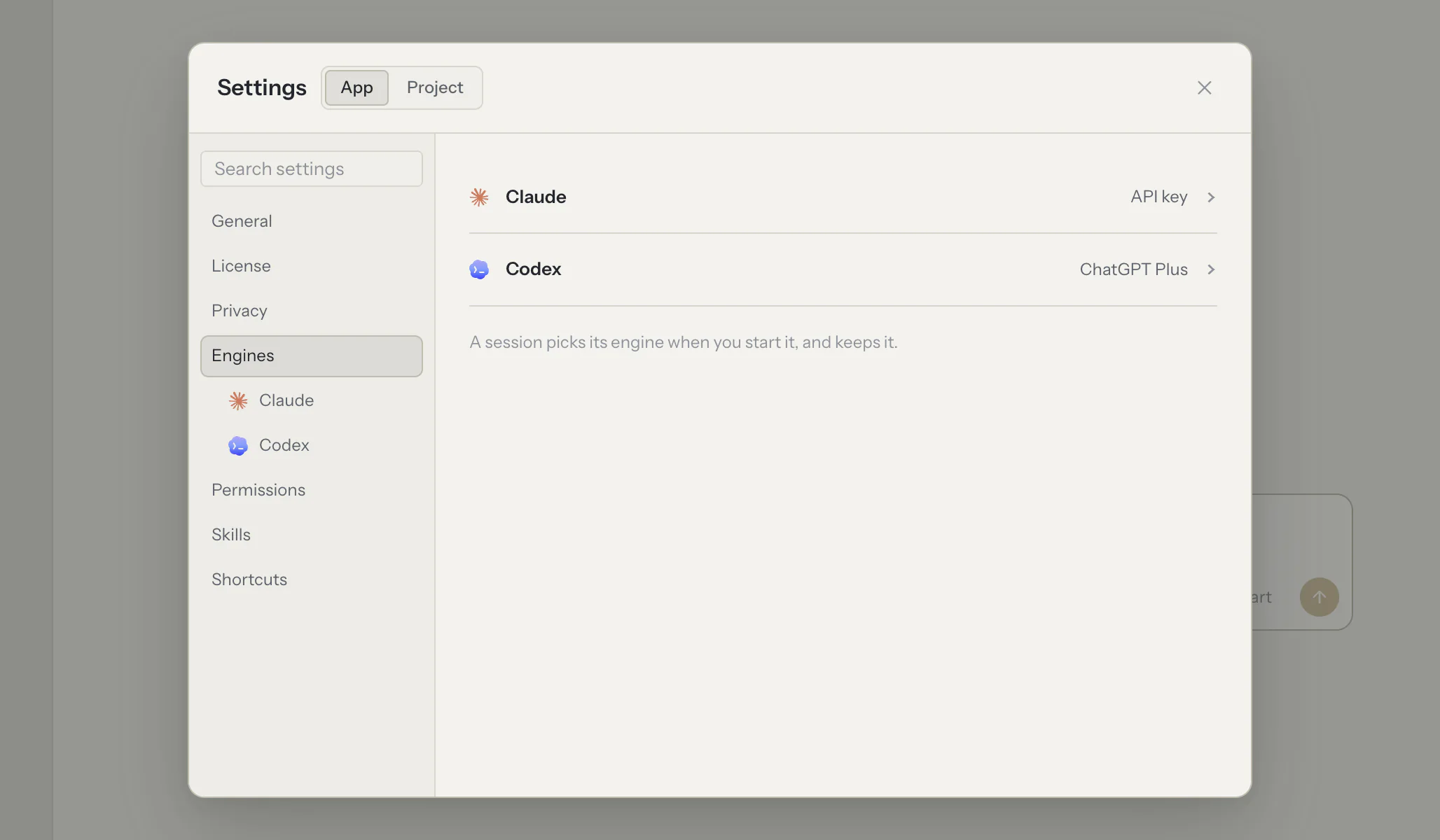
With a project open, Settings opens on the Project scope. Otherwise it opens on App › General. Use the App / Project switch at the top to change scope. Project is greyed out ("No project open") until you open a project.
Type in Search settings to filter rows across every pane of the current scope. Esc closes Settings.
What each pane controls#
App scope#
| Pane | What it controls |
|---|---|
| General | Theme (Ink, Drafting paper, System), Density (Comfortable, Compact), App text size, Viewer & Review text size, Muted text contrast, Thinking lines (Hidden, Collapsed, Expanded), Worked sections (Collapsed, Expanded), Suggest next steps, two notification switches (Notify when the agent needs you, Notify when a session finishes), and composer Autocomplete. |
| License | Your license or trial: Buy and Activate…, plan, key or email, Last check-in with Retry, and Sign out. Not shown in development builds. See License and account. |
| Privacy | The Share usage data switch. Shown only where usage data can be on. See Privacy and data. |
| Engines | One row per engine with its status. Open a row for the engine's own page. A session picks its engine when you start it, and keeps it. |
| Claude | Account and plan, the bundled version, defaults for new Claude sessions (Model, Effort, output style), Compaction (Auto-compact threshold, Auto-compact idle sessions), other models through Claude, and Claude's tools. |
| Codex | Sign-in status, the Codex version and where it was found (Choose… to point at another install, Use automatic to go back), defaults for new Codex sessions (Model, Effort), Codex's MCP servers and plugins, and what Codex sends to OpenAI. |
| Permissions | Default permission mode for new sessions. Also states what never changes: sends to another session always ask first (unless you trust that session), and destructive actions are always marked. |
| Skills | The skills available to every project, and Skill focus. Choose per project jumps to the Project scope. |
| Shortcuts | Every shortcut, searchable. See below. |
The Auto-compact threshold sets where a 1M-context session compacts. It is not a spend limit.
Project scope#
These apply only to the project named in the header.
| Pane | What it controls |
|---|---|
| General | The project's folder (Copy path, Reveal), start settings per engine (model, effort, output style, auto-compact, and Network access for Codex), and Remove from ShanFlow. Removing a project leaves the folder on disk. |
| Permissions | Permission mode for this project, Network access for Codex sessions, and the "always allow" and "always deny" rules you saved from permission prompts, each with remove. See Permissions. |
| Instructions | The instruction files each engine reads in this project: CLAUDE.md and AGENTS.md, project and global. ShanFlow opens them; you edit them in your own editor. |
| Tools | Hooks, commands and agents, and MCP servers for this project. See Tools. |
| Skills | Which skills this project focuses on. |
| Browser | Use your Chrome, Keep cookies, saved site sign-ins, and Clear browsing data. |
| Archived sessions | Sessions you archived, filterable. |
How settings cascade#
Settings resolve in three tiers: app defaults → project overrides → session overrides. The nearest value wins. A row that you haven't overridden says Inherit and shows what it inherits. An overridden row has a reset to inherit link.
You set the session tier where the session is, not in Settings: the composer's mode, model and effort pickers, the context popover, and the session's row menu.
Some settings are per machine and not part of the cascade, such as App text size and Theme.
Keyboard shortcuts#
Shortcuts are the same on both systems unless a row says otherwise. On Windows the ⌘ key maps to Ctrl, and ⌃ (Control) also maps to Ctrl. Windows has no second Ctrl key, and Ctrl+Alt is not used, so a few Windows chords differ.
See the list in the app#
Press ⌘/ (macOS) / Ctrl+/ or F1 (Windows), or choose Help › Keyboard Shortcuts. This opens Settings › Shortcuts with the filter focused. Type a name or a key, for example "review" or "Ctrl+K". The list shows the keys for your system.
Shortcuts can't be changed yet.
On macOS, a window menu bar shows the same keys next to each item. On Windows there is no menu bar: press F10, or use the menu button in the title bar, to open the menu.
App and windows#
| Action | macOS | Windows |
|---|---|---|
| Command palette | ⌘K · ⇧⌘P | Ctrl+K · Ctrl+Shift+P |
| Find action (palette on Actions) | ⇧⌘A | Ctrl+Shift+A |
| Keyboard shortcuts | ⌘/ | Ctrl+/ · F1 |
| Settings | ⌘, | Ctrl+, |
| Search all sessions | ⇧⌘F | Ctrl+Shift+F |
| Bigger text | ⌘+ · ⌘= | Ctrl++ · Ctrl+= |
| Smaller text | ⌘− | Ctrl+− |
| Actual size | ⌘0 | Ctrl+0 |
| Close the top panel or surface | ⌘W | Ctrl+W · Ctrl+F4 |
| Open the app menu | (menu bar) | F10 |
| Full screen | ⌃⌘F | F11 |
| Minimize | ⌘M | Win+↓ (system) |
| Close window | ⇧⌘W | — |
| Hide ShanFlow · Hide others | ⌘H · ⌥⌘H | — |
| Quit | ⌘Q | Ctrl+Q · Alt+F4 |
With focus in a Browser page, the zoom keys zoom the page instead of the app text.
Navigation and sessions#
| Action | macOS | Windows |
|---|---|---|
| New session | ⌘N | Ctrl+N |
| Add project | ⇧⌘O | Ctrl+Shift+O |
| Go to session (palette on Sessions) | ⌘O | Ctrl+O |
| Go to file (palette on Files) | ⌘P | Ctrl+P |
| Recent sessions (list stays open; Tab and ⇧Tab step it) | ⌃Tab | Ctrl+Tab |
| Last session | ⌃⇧Tab | Ctrl+Shift+Tab |
| Previous session | ⌘[ | Ctrl+[ · Ctrl+PgUp |
| Next session | ⌘] | Ctrl+] · Ctrl+PgDn |
| Previous workspace | ⌃⌘[ | Alt+[ |
| Next workspace | ⌃⌘] | Alt+] |
| Back (place history) | ⇧⌘[ | Ctrl+Shift+[ · Alt+← |
| Forward (place history) | ⇧⌘] | Ctrl+Shift+] · Alt+→ |
| Waiting on you (jump to a session that needs an answer) | ⌥⌘A | Ctrl+Shift+W |
| Toggle sidebar | ⌘B | Ctrl+B |
| Reveal this session in the sidebar | ⌥F1 | Alt+F1 |
| Rename session | F2 | F2 |
| Scheduled | ⇧⌘S | Ctrl+Shift+S |
| Messages (cross-session) | ⇧⌘; | Ctrl+Shift+; |
| Next region (sidebar, thread, composer, panel) | F6 | F6 |
| Previous region | ⇧F6 | Shift+F6 |
With the sidebar focused:
| Action | macOS | Windows |
|---|---|---|
| Move, open, expand or collapse | ↑ ↓ ⏎ → ← | Up Down Enter Right Left |
| Jump to a row by name | type letters | type letters |
| Filter the sidebar | ⌘F | Ctrl+F |
| Row menu | ⇧F10 | Shift+F10 · Menu key |
Archive and Insights have menu items but no key.
Composer and sending#
| Action | macOS | Windows |
|---|---|---|
| Send. While a turn runs, queues the message for after it ends. | ⏎ | Enter |
| Steer the running turn (adds to it without interrupting) | ⌘⏎ | Ctrl+Enter |
| New line | ⇧⏎ · ⌥⏎ | Shift+Enter · Alt+Enter |
| Previous / next prompt | ↑ ↓ | Up Down |
| Scroll the thread from the composer | PgUp · PgDn | PgUp · PgDn |
| Accept the autocomplete suggestion | ⇥ · → | Tab · Right |
| Open a picker | / @ # $ | / @ # $ |
| Insert the picked item | ⏎ · ⇥ | Enter · Tab |
| Take back a restored draft | ⌘Z | Ctrl+Z |
| Attach files | ⌘U | Ctrl+U |
| Permission mode menu | ⇧⌘M | Ctrl+Shift+M |
| Model menu | ⇧⌘I | Ctrl+Shift+I |
| Effort menu | ⇧⌘E | Ctrl+Shift+E |
| Side chats | ⌘; | Ctrl+; |
The mode, model and effort shortcuts work in a session and in the new-session view. Inside those menus: ↑ ↓ to move (← → for effort), ⏎ or 1–9 to choose, Esc to close.
Thread and decision cards#
| Action | macOS | Windows |
|---|---|---|
| Jump to prompt | ⌘J | Ctrl+J |
| Find in the thread | ⌘F | Ctrl+F |
| Find next / previous | ⌘G · ⇧⌘G | Ctrl+G · F3 / Ctrl+Shift+G · Shift+F3 |
| In a find bar: next / previous match | ⏎ · ⇧⏎ | Enter · Shift+Enter |
| Previous / next message | ⌥↑ · ⌥↓ | Alt+Up · Alt+Down |
| First / latest message | Home · End | Home · End |
| Open a file link, image or diagram: quick view · own window | ⏎ · ⌘⏎ | Enter · Ctrl+Enter |
| Magnify the focused message | Space | Space |
| In Magnify: previous / next message | ⌥↑ ⌥↓ | Alt+Up Alt+Down |
| In Magnify: text size | + · − | + · − |
| Pick a card option | 1–9 | 1–9 |
| Move between options | ↑ · ↓ | Up · Down |
| Choose the focused option | ⏎ | Enter |
| Press a lasting choice (Always allow, Delete) | Space | Space |
| Leave the card waiting | Esc | Esc |
The Find key goes to whatever has focus: a modal's search field, a terminal, a reader or diff, an open page find, the Browser page, or else the thread.
Panels#
The side panel's tools open with their own key. Slots 1 to 5 follow the rail from top to bottom: Details, Browser, Files, Changes, Terminal.
| Action | macOS | Windows |
|---|---|---|
| Show or hide the side panel | ⌥⌘B | Ctrl+Shift+B |
| Details | ⌘I | Ctrl+I |
| Browser (focuses the address bar) | ⌘L | Ctrl+L |
| Files | ⌘E | Ctrl+E |
| Changes | ⌘D | Ctrl+D |
| Terminal | ⌃` | Ctrl+` |
| Background tasks | ⌘T | Ctrl+T |
| Panel by slot (1–5, top to bottom) | ⌘1–5 | Ctrl+1–5 |
| Show the slot numbers | hold ⌘ | hold Ctrl |
| Move between rail tiles, open | ↑ ↓ ⏎ Space | Up Down Enter Space |
Hold the key for half a second to show the slot numbers.
Lists, viewers and review#
| Action | macOS | Windows |
|---|---|---|
| Move · first · last in a list | ↑ ↓ Home End | Up Down Home End |
| Activate · toggle | ⏎ · Space | Enter · Space |
| Save a schedule form | ⌘⏎ | Ctrl+Enter |
| Delete a schedule | ⌘⌫ · ⌦ | Delete |
| Next / previous change | ⌥↓ · ⌥↑ | Alt+Down · Alt+Up |
| Next / previous changed file | ↑ ↓ in the list | Up Down in the list |
| Open the file viewer at this change | ⌘⏎ | Ctrl+Enter |
| Keep or leave out a file | Space | Space |
| Commit the kept files | ⌘⏎ | Ctrl+Enter |
| Push (opens a confirm; never pushes by itself) | ⇧⌘K | Ctrl+Shift+K |
| Time Machine: step · play | ← → Space | Left Right Space |
| File viewer window: previous tab | ⇧⌘[ · ⌃⇧Tab | Ctrl+Shift+[ · Ctrl+Shift+Tab · Ctrl+PgUp |
| File viewer window: next tab | ⇧⌘] · ⌃Tab | Ctrl+Shift+] · Ctrl+Tab · Ctrl+PgDn |
The file viewer window has no sessions, so the tab keys replace the session keys there.
Find and search#
| Action | macOS | Windows |
|---|---|---|
| Find (thread, reader, diff, page) | ⌘F | Ctrl+F |
| Find next / previous | ⌘G · ⇧⌘G | Ctrl+G · F3 / Ctrl+Shift+G · Shift+F3 |
| Search all sessions | ⇧⌘F | Ctrl+Shift+F |
| Go to file | ⌘P | Ctrl+P |
| Go to session | ⌘O | Ctrl+O |
| Find action | ⇧⌘A | Ctrl+Shift+A |
| Filter the sidebar (sidebar focused) | ⌘F | Ctrl+F |
Terminal#
The terminal passes most keys to the shell. On Windows the shell keeps Ctrl+K, Ctrl+A and the line keys.
| Action | macOS | Windows |
|---|---|---|
| Copy · paste | ⌘C · ⌘V | Ctrl+Shift+C · Ctrl+Shift+V |
| Clear | ⌘K | — |
| Select all | ⌘A | — |
| Line start · end · delete to start | ⌘← · ⌘→ · ⌘⌫ | — |
| Find in the terminal | ⌘F | — |
| Do Esc's job (Esc goes to the shell) | ⇧Esc | Shift+Esc |
| Show or hide the terminal | ⌃` | Ctrl+` |
Browser#
| Action | macOS | Windows |
|---|---|---|
| Open the Browser on the address | ⌘L | Ctrl+L |
| Reload the page | ⌘R | Ctrl+R · F5 |
| Hard reload | ⇧⌘R | Ctrl+Shift+R · Ctrl+F5 |
| Page back / forward | ⇧⌘[ · ⇧⌘] | Ctrl+Shift+[ · ] · Alt+← · Alt+→ |
| Find in the page | ⌘F | Ctrl+F |
| Zoom the page | ⌘+ ⌘− ⌘0 | Ctrl++ Ctrl+− Ctrl+0 |
| Do Esc's job (Esc goes to the page) | ⇧Esc | Shift+Esc |
On a page, the app keeps ⌘T, ⌘W and ⌘1–5: pages are a list, not tabs.
Esc#
Esc does one thing per press, nearest first:
- A tooltip hides.
- The focused control or open menu takes it (a menu closes, a find bar closes, a card stays waiting).
- While a turn is running and you armed Stop (see below), Esc presses Stop.
- If a finished or failed notice is showing, Esc clears it.
- Otherwise it closes the top surface, in this order: quit sheet, MCP dialog, quick view, command palette, Magnify, search, Settings, a focused conversation, side chats, an agent's detail, then Time Machine.
- If nothing was left to close, focus goes to the composer. While a turn runs, this press arms Stop.
To stop a running turn with the keyboard: press Esc until nothing is left to close, then press Esc once more. The Stop button gets the pressed look. A single Esc, or a held Esc, never stops a turn. You can also press Stop in the composer, or use Session › Stop.