14 Reference
License and account
ShanFlow has a free Early Access build, and an official build with a 30-day trial and a yearly license. This chapter covers how each one works and how to activate, move and renew a license.
Either way you bring your own Claude or Codex access. A ShanFlow license doesn't include model usage.
Which build you have#
| Build | Cost | Account | Ends |
|---|---|---|---|
| Early Access | Free | None | When we close Early Access. The app tells you first. |
| Official, trial | Free | None | After 30 days. One trial per machine. |
| Official, licensed | Yearly subscription | Your email, or a license key | At the end of the period, unless it renews. |
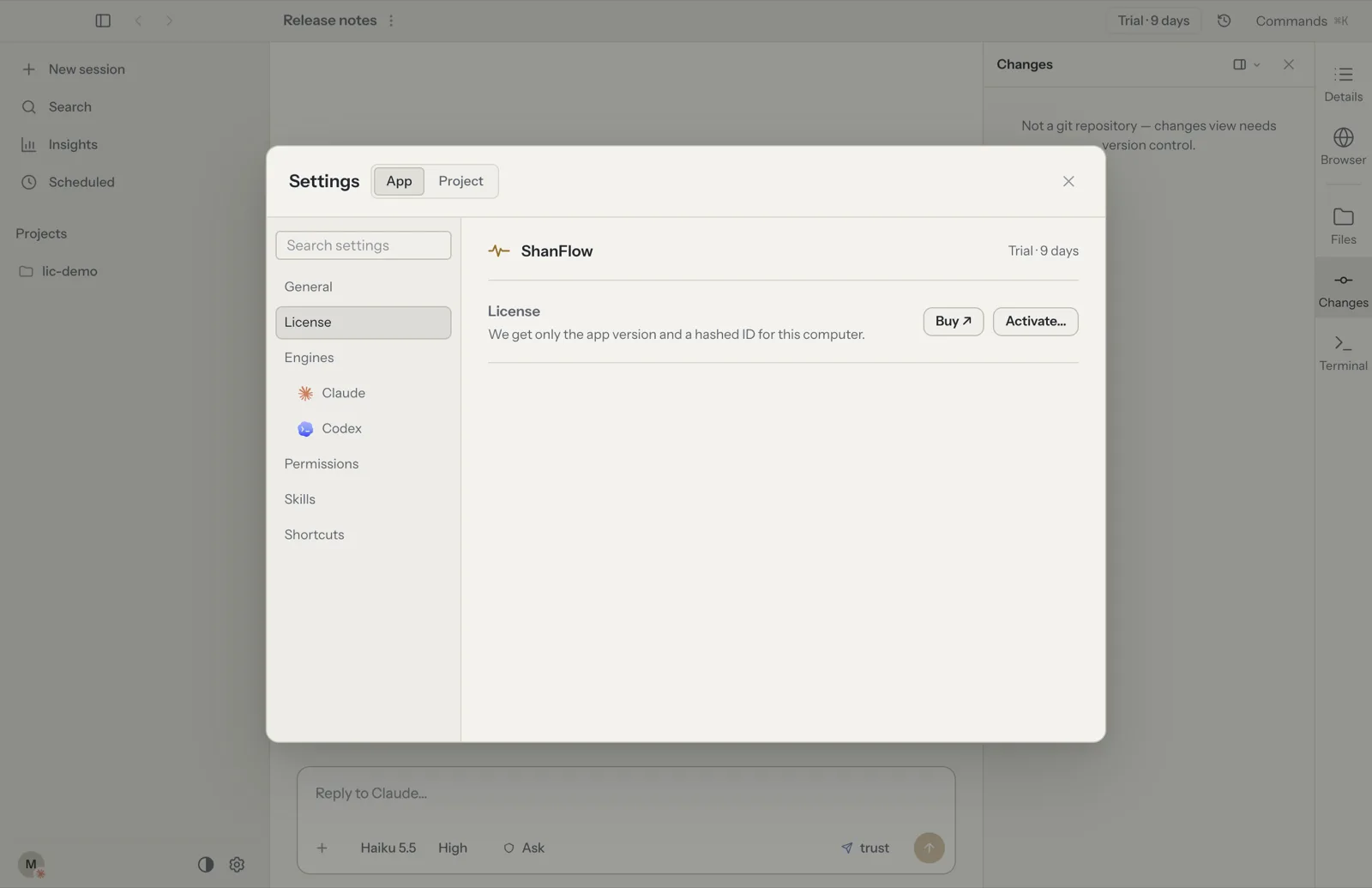
Settings › License shows which one you're on: Free while Early Access is open, Trial with the days left, or Licensed. The title bar also shows a trial chip such as Trial · 9 days during the trial.
Early Access#
The Early Access build is free and needs no sign-in. It runs until we close Early Access.
When Early Access ends#
When it ends, the app shows Early Access has ended. Install the official build from the download page over the Early Access one. Your sessions and settings carry over.
The 30-day trial#
The official build starts a 30-day trial the first time you open it on a machine. There's no account and no card. We record the trial against a hashed ID of the machine, so reinstalling doesn't start a new one.
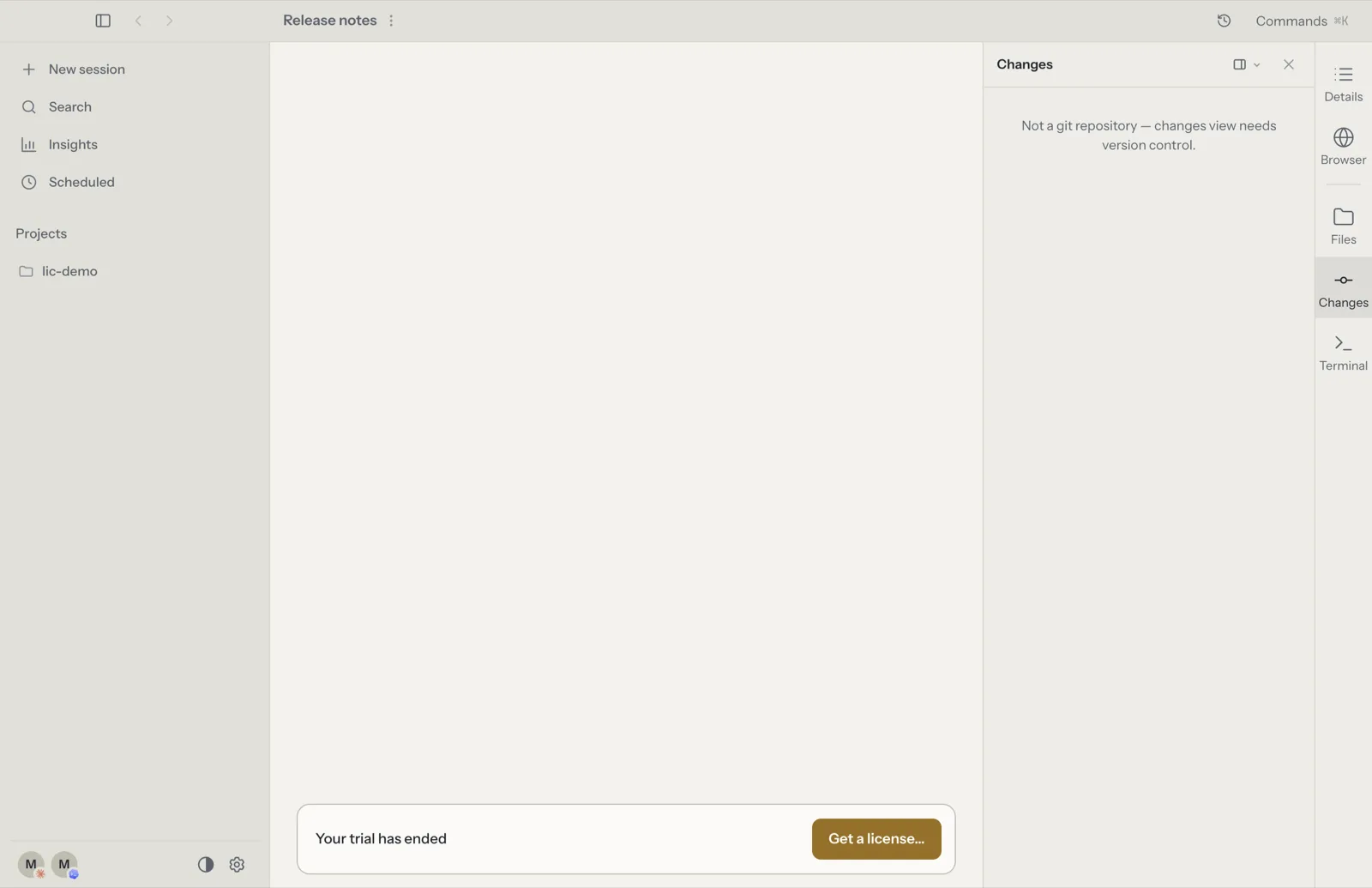
When the trial ends, the agent stops: no new turns or sessions. Your history, settings and the License screen stay open, and nothing you made is lost. The composer shows Your trial has ended with a Get a license… button.
Activate a license#
A license is for one person and works on any number of your own machines, on macOS and Windows. After you buy, we email your license key. You can activate two ways.
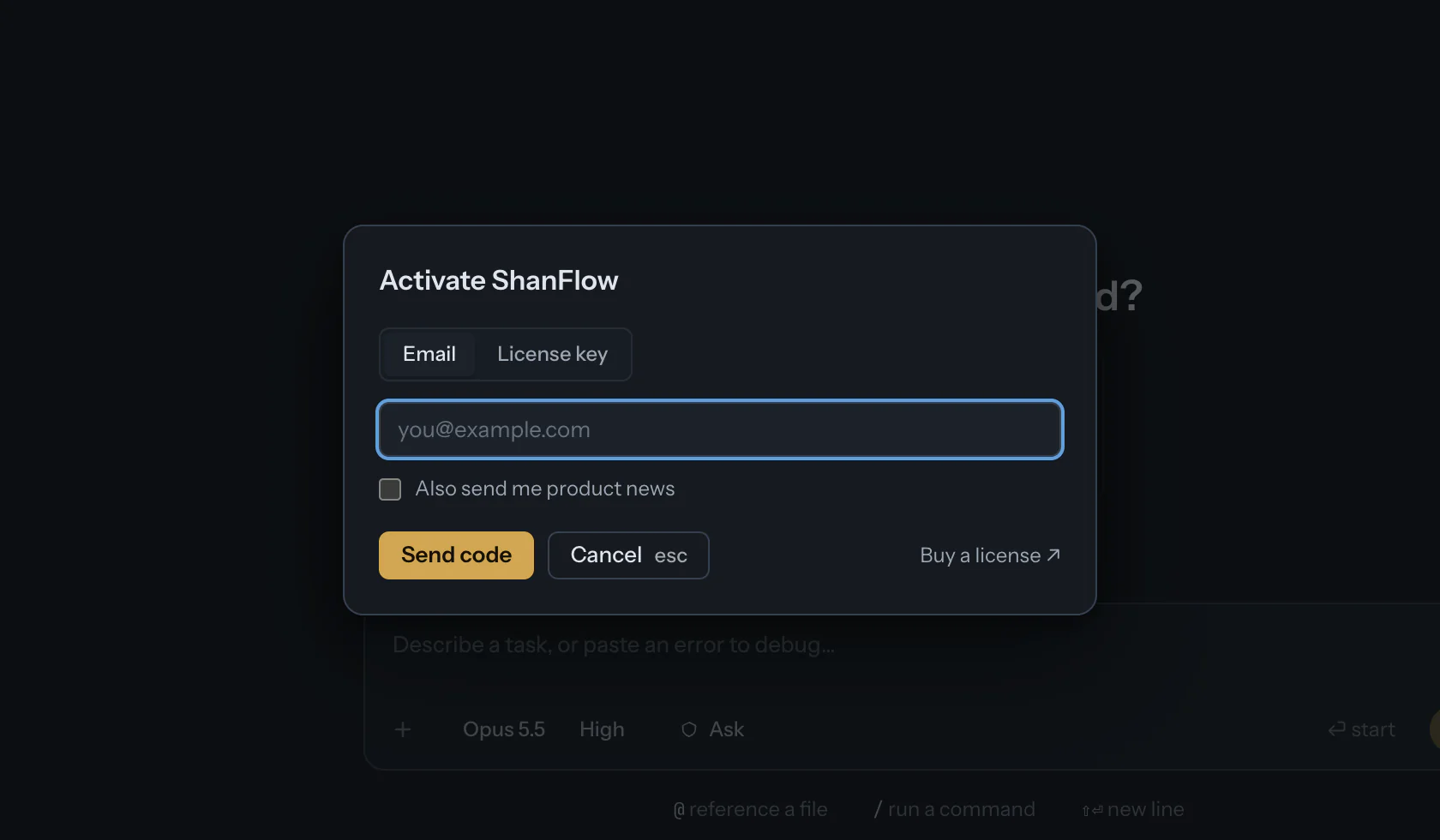
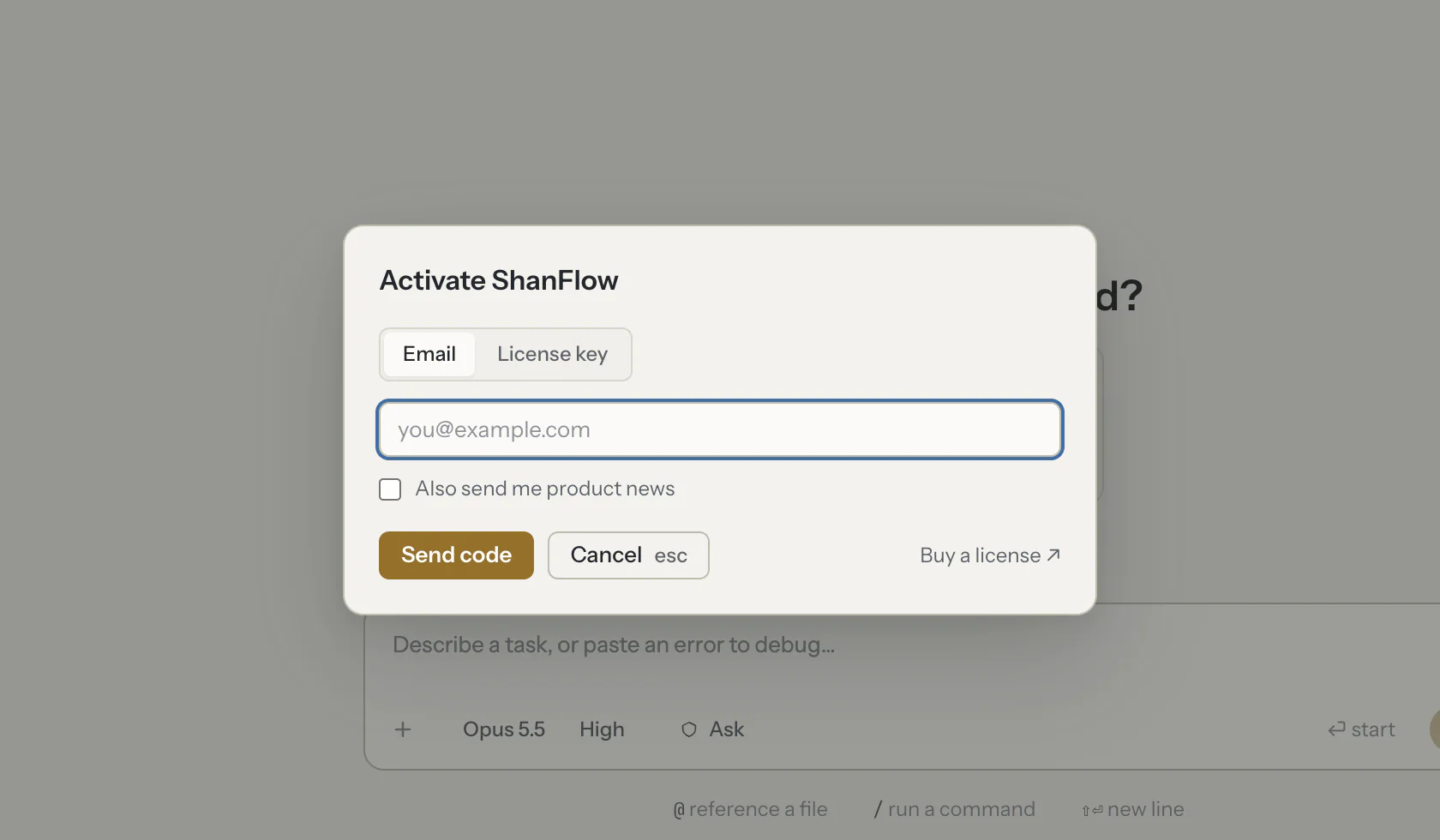
- Open Settings › License and choose Activate…. You can also choose Get a license… when the trial has ended.
- Choose how to activate.
With your email (recommended):
- Choose the Email tab and enter the email you bought with.
- Choose Send code. We email a 6-digit code.
- Enter the code and choose Activate.
With a license key:
- Choose the License key tab and paste the key from your purchase email.
- Choose Activate.
The dialog then says Licensed. Settings › License shows your email (or the last four characters of your key), your plan and when it runs until.
If you tick Also send me product news, we email you news. You can change this later in Settings › License (email sign-in only).
If activation fails#
- That code doesn't match or That code has expired: use the newest email, or choose Send again.
- No license for this email: try the address you bought with, or use the key.
- That key isn't valid: copy it again from the email, with no spaces at either end.
- Can't reach ShanFlow. Check your connection.: check your internet and try again.
- This license is at its device limit.: choose Manage devices to free up a machine in your account.
Use ShanFlow offline#
ShanFlow checks in with our server to confirm your trial or license. You can work offline for up to 7 days. After 7 days without a successful check-in, the agent stops until the app reconnects. Everything else stays open: your history, settings and the License screen.
When that happens the composer shows Can't reach ShanFlow. Check your connection and choose Retry. Settings › License shows Last check-in, with a Retry button when a check-in is due.
The check sends a hashed machine ID, the app version, and your email if you signed in. Nothing about your code. See Privacy and data.
Move to a new machine#
- Install ShanFlow on the new machine.
- Open Settings › License, choose Activate…, and sign in with the same email, or paste your key.
There's no machine limit at launch. You don't need to deactivate the old machine first. Your sessions stay where they are: Claude Code sessions are in ~/.claude and Codex threads in ~/.codex, so copy those if you want the history on the new machine too.
Remove a license from this machine#
In Settings › License, choose Sign out (email) or Remove (license key). Your sessions stay. To use the agent on this machine again, activate again.
Your account#
You don't need an account to try ShanFlow. An account holds your license: your email and nothing else, with no password. Sign in at shanflow.dev/account with a one-time code to see your key, machines, invoices and renewal date.
Renew or cancel#
Your license runs for a year and renews automatically. We email you 7 days before each renewal. Cancel any time in your account. The license keeps working to the end of the period. For refunds, see the refund policy on the site.
If a license lapses, the agent stops, the same as at the end of a trial. Your history and settings stay.