03 Work
The thread
The thread is the conversation with the agent: your messages, its replies, and a row for each action it takes. This chapter covers how to read it, what to do when it stops to ask you something, and how to find your way around a long session.
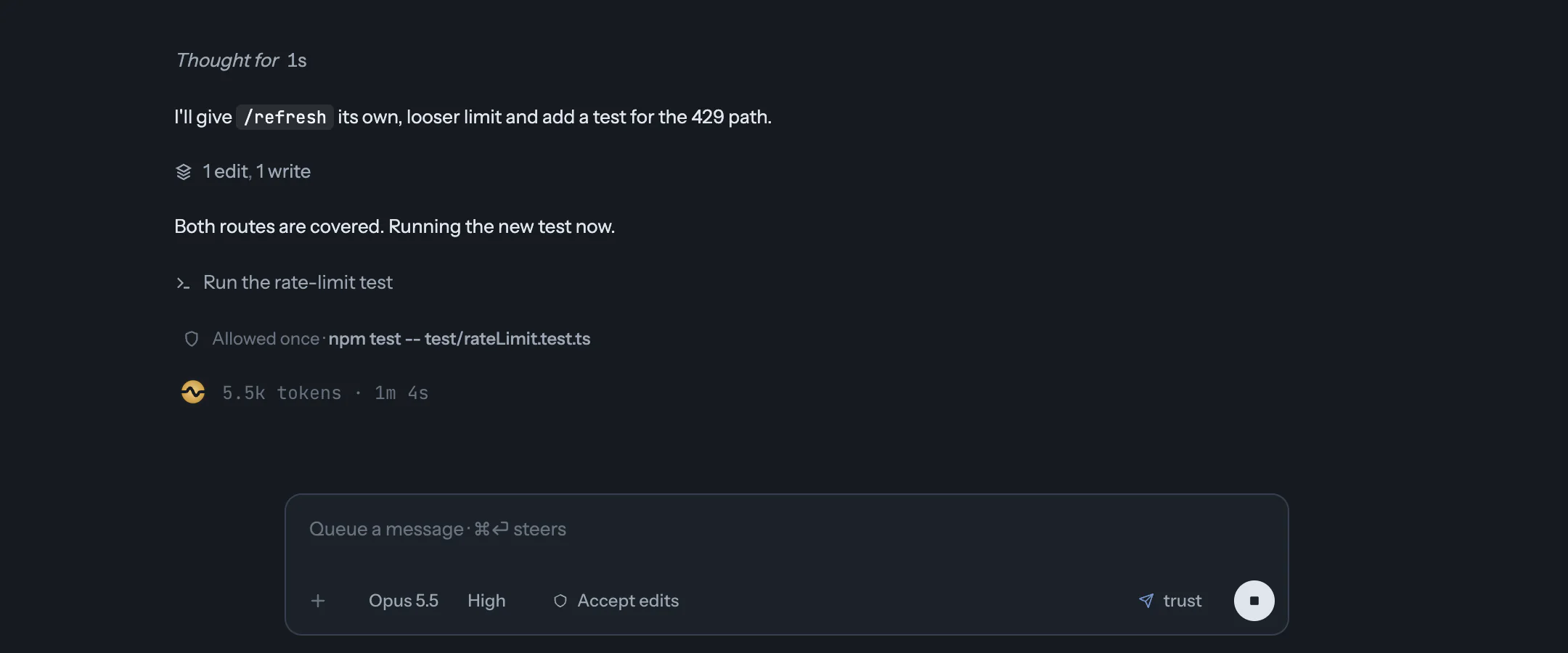
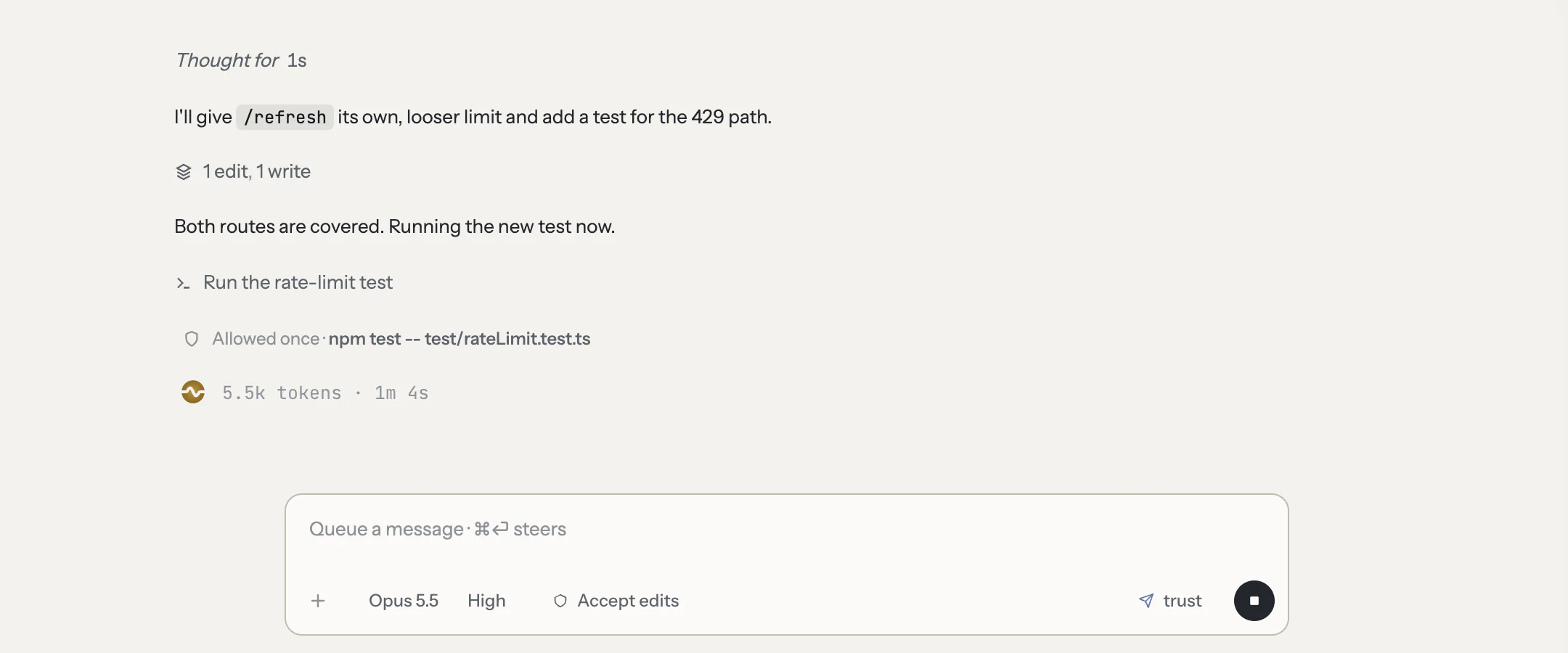
Read what the agent did#
Each reply is made of prose and action rows. A row names one action: reading or searching files, editing or writing a file, running a command, calling a tool.
- Click a row, or its chevron, to Show details. Click again to Hide details.
- An edit or write row opens to an inline diff and its totals (lines added and removed). Use View diff to read it in a larger view, or Open in Files to open the file.
- A command row opens to the command and its output. While the command runs the output follows the tail; if it is long, the earlier part is hidden and the row says so. Use Open in viewer to read the whole command, or Copy to copy it.
- A row marked leaves your machine (a web fetch, for example) is an action that reaches outside your computer.
- Click a file name in the thread to open it in a quick viewer.
Thinking appears as a Thought for … line. How it shows is a setting: Settings → General → Thinking lines. It's Hidden by default: you see the line only while the agent thinks. Choose Collapsed or Expanded to keep it in the thread.
Fold and unfold a turn's work#
When a turn has answered, its actions fold into one line that reads Worked for 1m 12s. A run of similar actions also folds into a count such as "1 edit, 1 write" or "3 reads, 1 command".
- Click Worked for … to open the turn's work.
- Click Collapse to fold it again.
Your choice carries on through that session: turns that finish afterwards open or fold the same way. Every new session starts folded. To change that starting state, open Settings → General → Worked sections and choose Collapsed or Expanded.
Finding text with Find in session (below) opens a folded section when the match is inside it.
Copy, rewind or fork from a message#
Hover a message to see its actions.
- Your message: Copy prompt, Rewind to here (see Time travel), and a toggle between formatted text and raw Markdown.
- The agent's reply, under the last line: Copy answer, a fork button, and Break down answer, which asks the agent to explain that answer more simply.
Watch the status line while the agent works#
Below the last line, the status line shows that a turn is running: a moving mark, the tokens used so far, and the time elapsed.
The line adds words only when something needs your attention:
- Waiting on you — a question to answer, or — permission: <command>, or — a plan to approve. The turn is paused until you answer.
- Retrying 2/5… when a request to the model failed and is being retried.
- Waiting on the API — 20s… when the model has not answered for a while.
- Waiting on a background task… when the agent has started something that is still running.
You can send a message while the agent works. See Composer for queue, steer and stop.
Answer a question from the agent#
Sometimes the agent asks you to choose. A question card appears in the thread with its options.
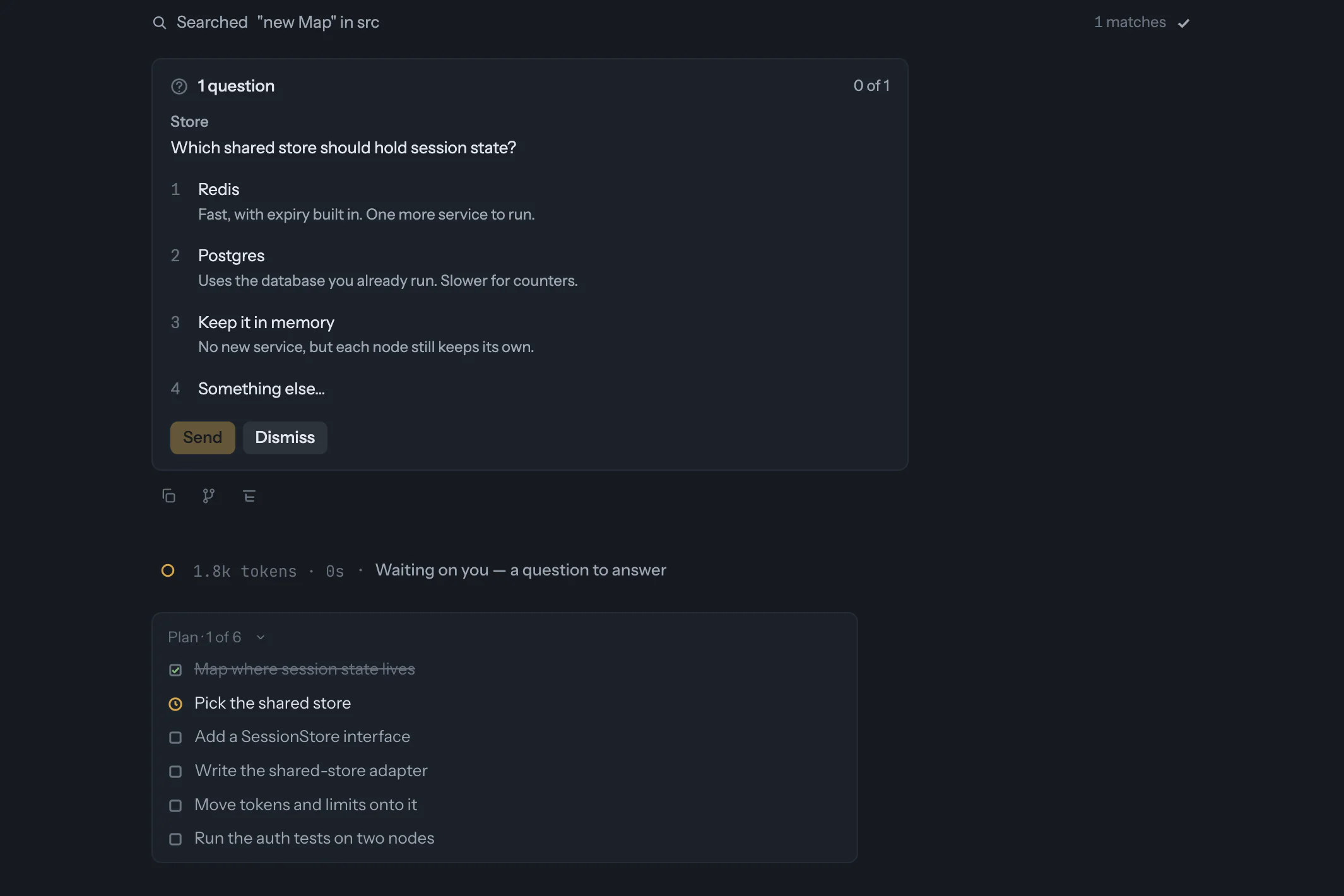
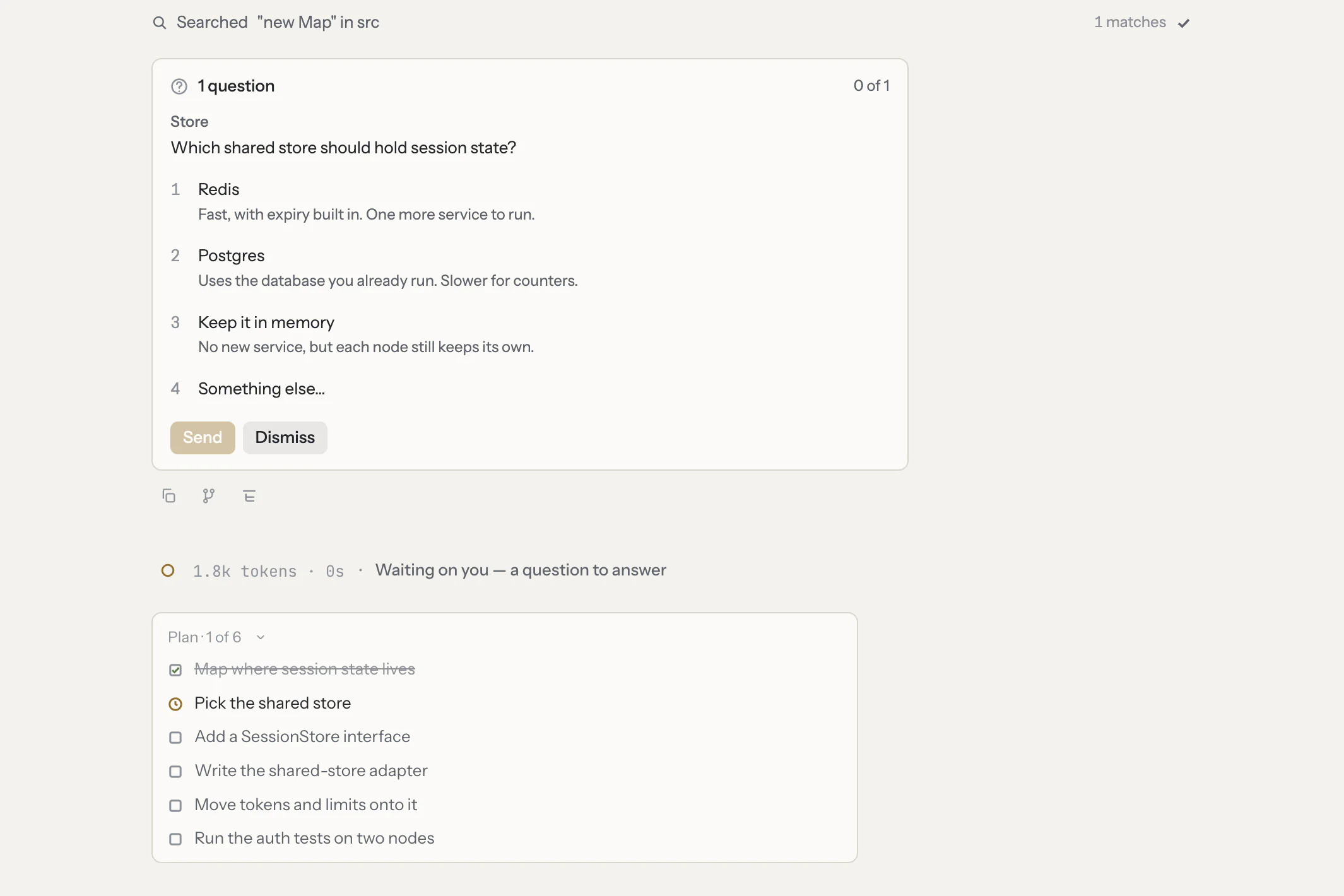
- Pick an option. Press 1 to 9 to pick by number, or click. A question that allows several picks lets you pick more than one.
- Pick Something else… to type your own answer.
- When the card has several questions, answer each; the head shows how many are done (for example "1 of 3").
- Click Send. Send stays disabled until every question has an answer.
Click Dismiss to decline all of them. If you type a normal message instead, your message answers the question and the card closes with Answered in your reply.
Once sent, your answers show in the thread as your own message, one question and answer per pair.
Some questions do not stop the agent. These wait under the status line while the agent keeps working, and stay there after the turn ends until you send or dismiss them. Use the chevron (Hide for now / Show) to shrink the card to one line.
To jump to whatever is waiting for you, even in another session, use Waiting on You: ⌘⌥A (macOS) / Ctrl+Shift+W (Windows).
Follow the plan#
When a request has several steps, the agent keeps a checklist under the status line: Plan · 1 of 6. A finished step is ticked, the step in progress is marked, and the rest are empty boxes. The list updates as the agent works.
- Click the chevron to shrink the plan to one line, showing only the current step. It stays shrunk for that turn.
- When the turn ends, the plan folds into a Plan step inside Worked for ….
- If the agent started a session for a step, the step shows that session; click it to open it.
This is separate from the approval card for a proposed plan in Plan mode. See Permissions.
Use the next-step suggestion#
When a turn finishes, the agent can add a small card with a short recap and one or two buttons for what to do next. Click a button to send it as your next message. If you type your own message instead, the card goes away.
A button that reads Open a PR appears for sessions in a worktree and opens the pull request flow.
Hover the card and click the eye to hide suggestions from now on. To turn them back on, click Show again or use Settings → General → Suggest next steps.
Jump to the latest message#
If you scroll up while the agent works, the thread stops following the new text. A down-arrow button appears at the bottom: Jump to latest (End). The thread follows again once you are back at the bottom.
Other keys for moving around:
| To do this | macOS | Windows |
|---|---|---|
| Previous / next message | ⌥↑ / ⌥↓ | Alt+Up / Alt+Down |
| First / latest message | Home / End | Home / End |
| Jump to a prompt | ⌘J | Ctrl+J |
A long session loads its newest messages first. Click Load earlier messages at the top to bring in older ones.
Find in a session#
- Press ⌘F (macOS) / Ctrl+F (Windows). A Find in session bar opens.
- Type. Every match is highlighted and the bar shows the count.
- Press Enter for the next match and Shift+Enter for the previous one. Or use ⌘G / ⌘⇧G (macOS), Ctrl+G / Ctrl+Shift+G or F3 / Shift+F3 (Windows).
- Press Esc to close the bar.
To search across all your sessions, use ⌘⇧F (macOS) / Ctrl+Shift+F (Windows).