02 Start
Core concepts
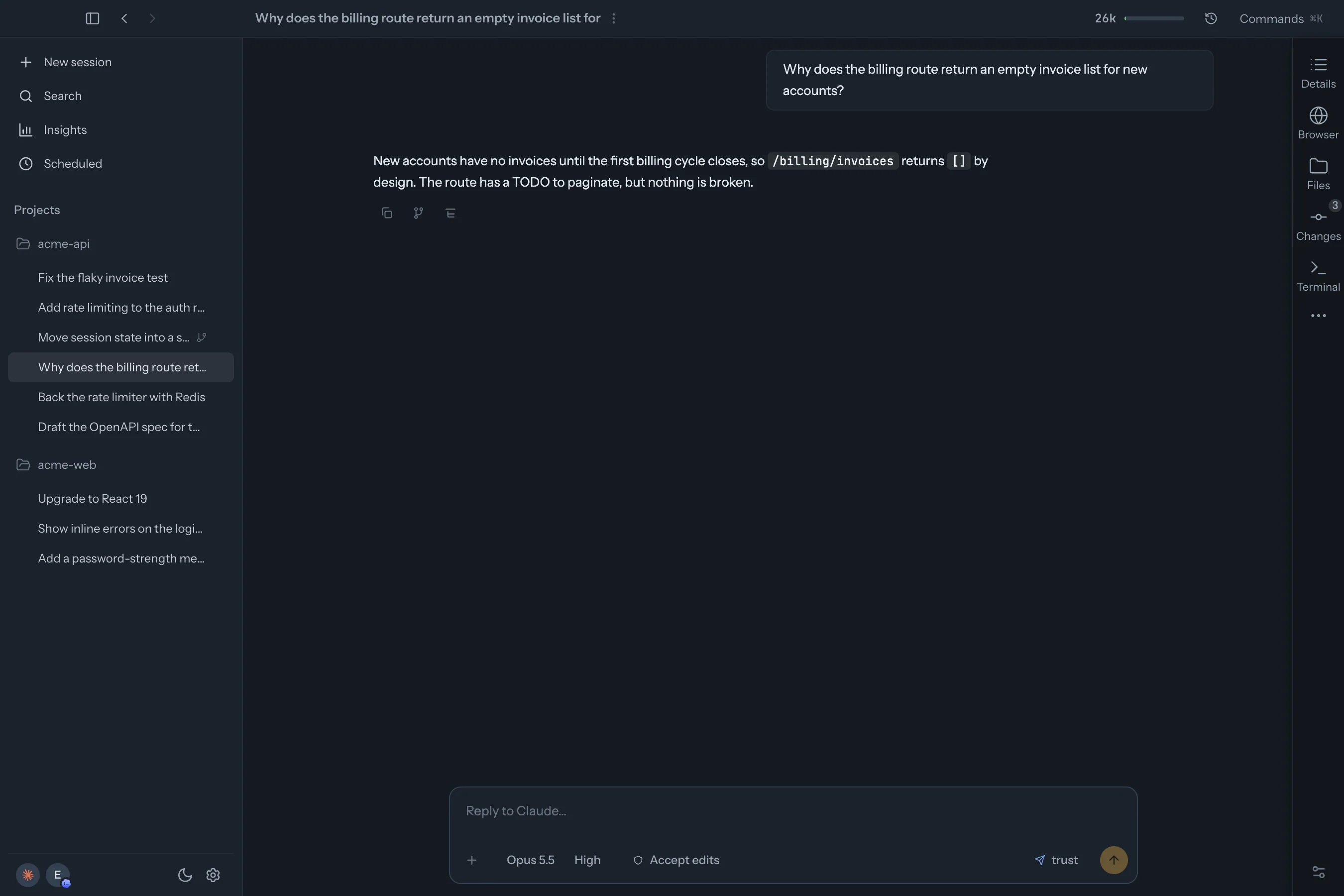
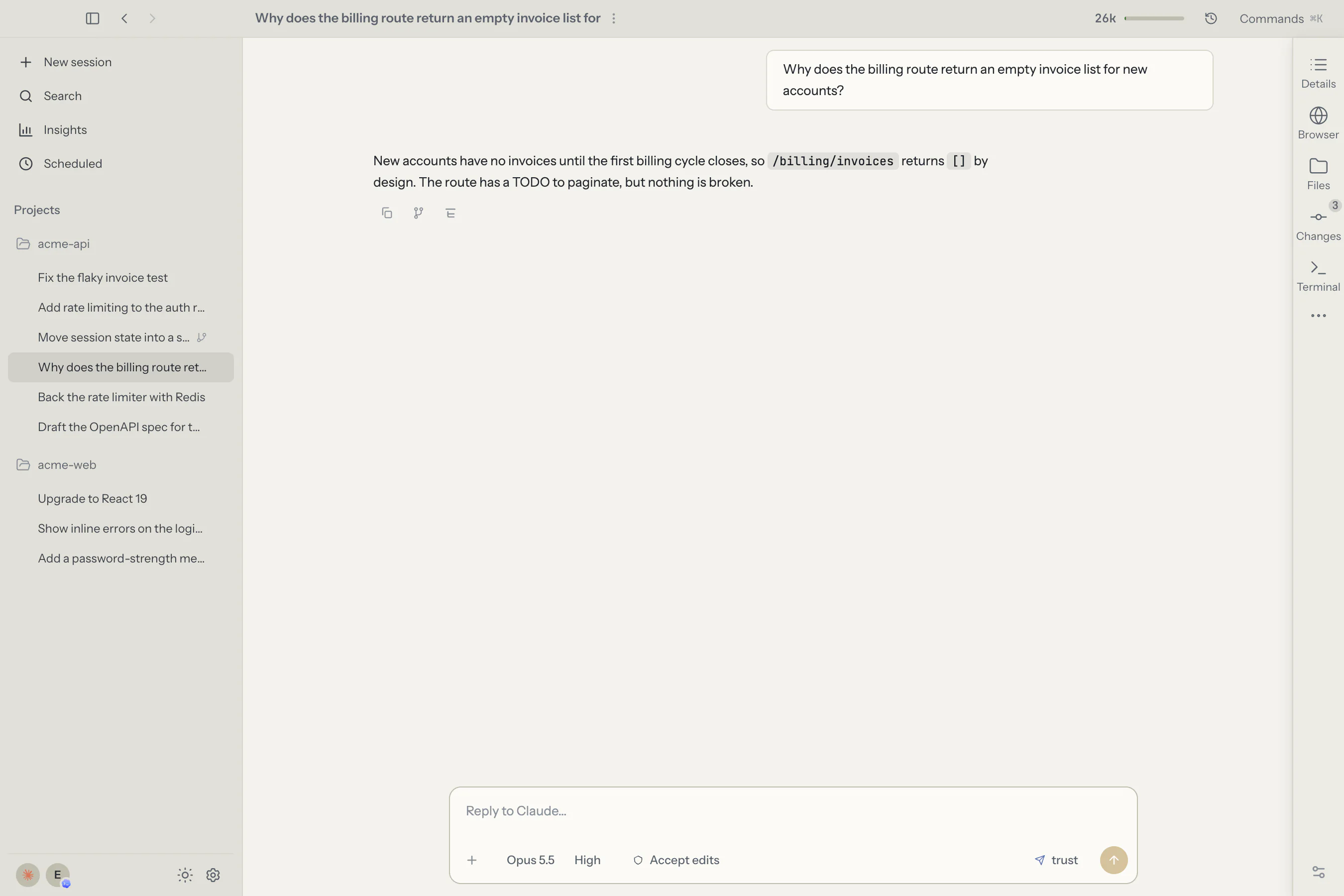
ShanFlow organizes work as projects, sessions, groups and, optionally, workspaces. This chapter explains each one and where your sessions are stored.
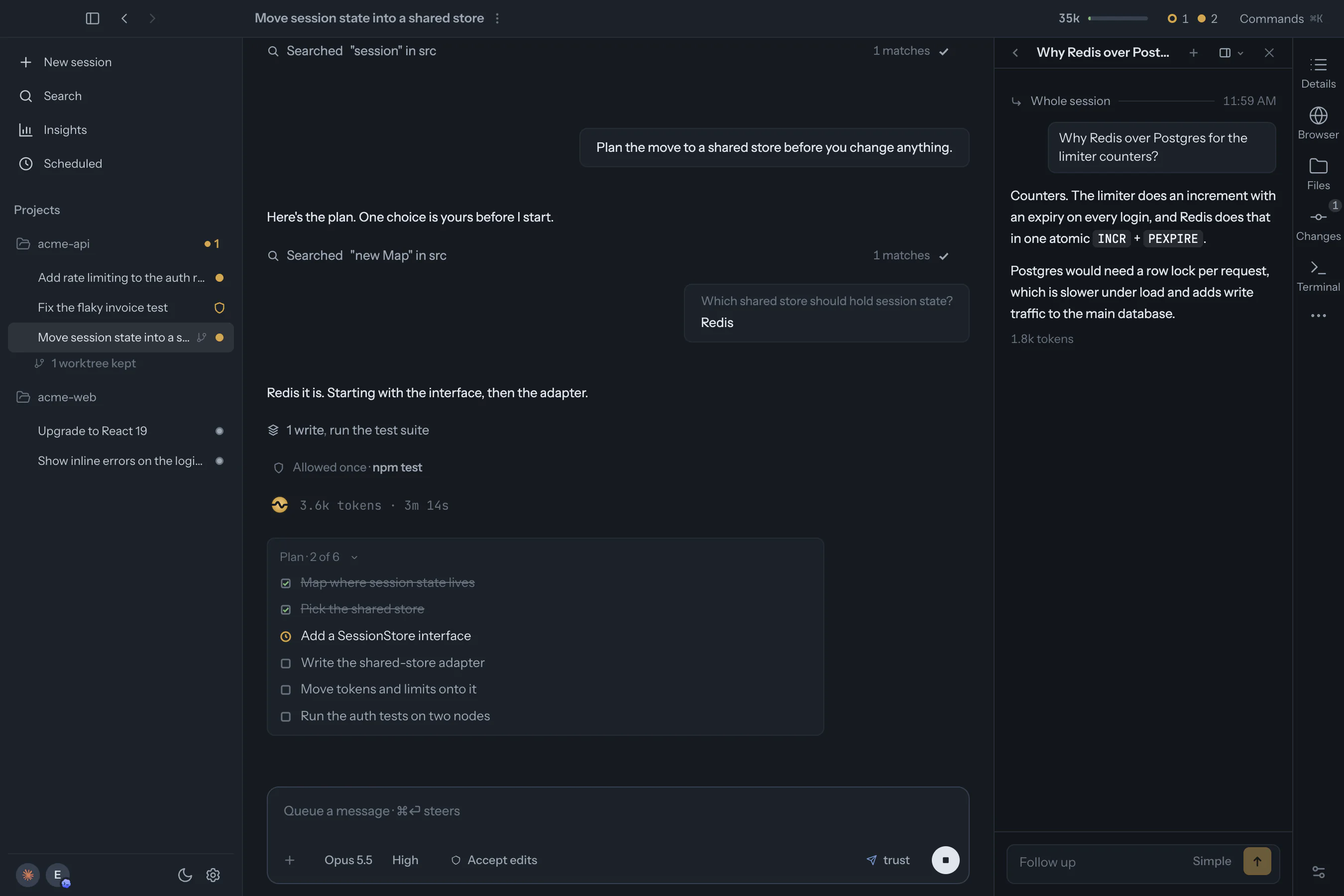
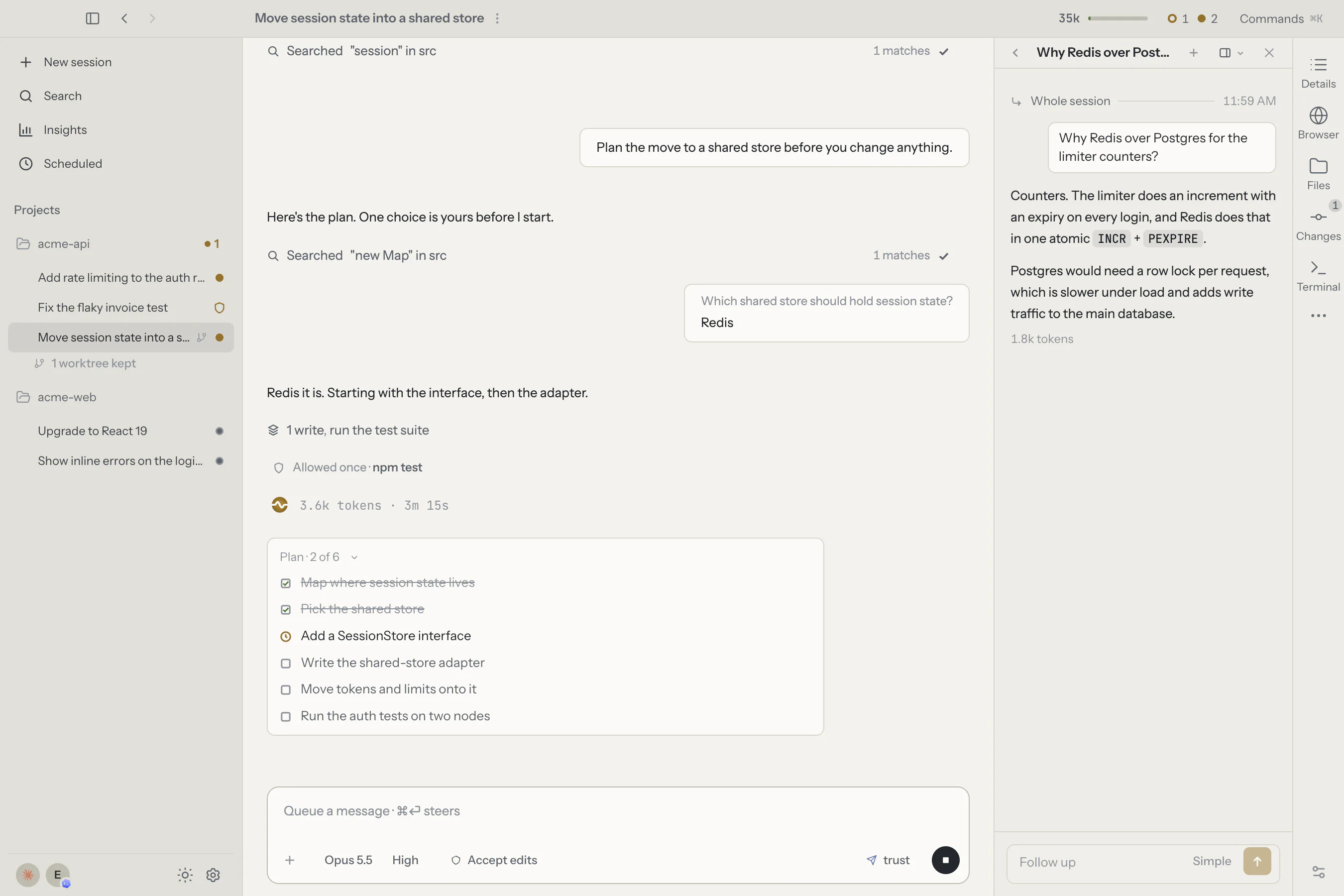
Projects#
A project is a folder on your computer, usually a repository. A project owns its sessions: a session always runs in its project's folder and stays attached to it.
Add a project#
- Choose the + next to Projects in the sidebar, or press ⇧⌘O (macOS) / Ctrl+Shift+O (Windows).
- Pick the folder.
You can also choose Add project… in the project list on the New session screen.
Work with a project#
Right-click a project, or use its menu, for these actions:
- New session: start a session in this project.
- New group: add a group (see below).
- Rename: change the name ShanFlow shows. The folder keeps its name.
- Project settings…: model, permissions and other defaults for this project only.
- Show in Finder (macOS) / Show in Explorer (Windows), Open in Terminal, Copy path.
- Move to workspace: shown when you have more than one workspace.
- Link projects…: let sessions in two projects message each other.
- Remove from ShanFlow: take the project out of the list.
Removing a project never touches the folder on disk. It does stop any session running in that project, and ShanFlow asks you to confirm first, saying how many sessions leave and how many stop.
Sessions#
A session is one conversation with an agent, from your first message on. Each session has:
- a title, made from your first prompt (you can rename it);
- an engine, Claude or Codex, chosen when you start it and kept for its life;
- its own model, effort and permission mode;
- a status in the sidebar: running, waiting on you, or idle.
You can run many sessions at once, in one project or across projects. Switching sessions never interrupts a running one. See Running many sessions.
Start, open and manage sessions#
- New session: ⌘N (macOS) / Ctrl+N (Windows).
- Open one: click it in the sidebar. A session resumes with its full history.
- Find one: use Search in the sidebar, or ⇧⌘F (macOS) / Ctrl+Shift+F (Windows) to search the text of every session.
- Sort: the Sort button above the project list sorts sessions by Date (newest first), Alphabetical or None. With None you drag sessions into your own order.
- Rename, archive or delete: right-click a session and choose Rename, Archive or Delete. Archiving hides a session without deleting it; deleting removes it.
Groups#
A group is a named bucket for sessions inside one project, for example "auth" or "release". Groups only organize the sidebar. They don't move files or change what a session can do, and removing a group never deletes its sessions.
- Right-click a project and choose New group, and name it.
- Right-click a session, choose Move to group, and pick the group. Pick Ungrouped to take it out, or create a new group from the same menu.
- Drag a group to reorder it.
A group name is unique within its project. The same name can be used in other projects.
Workspaces#
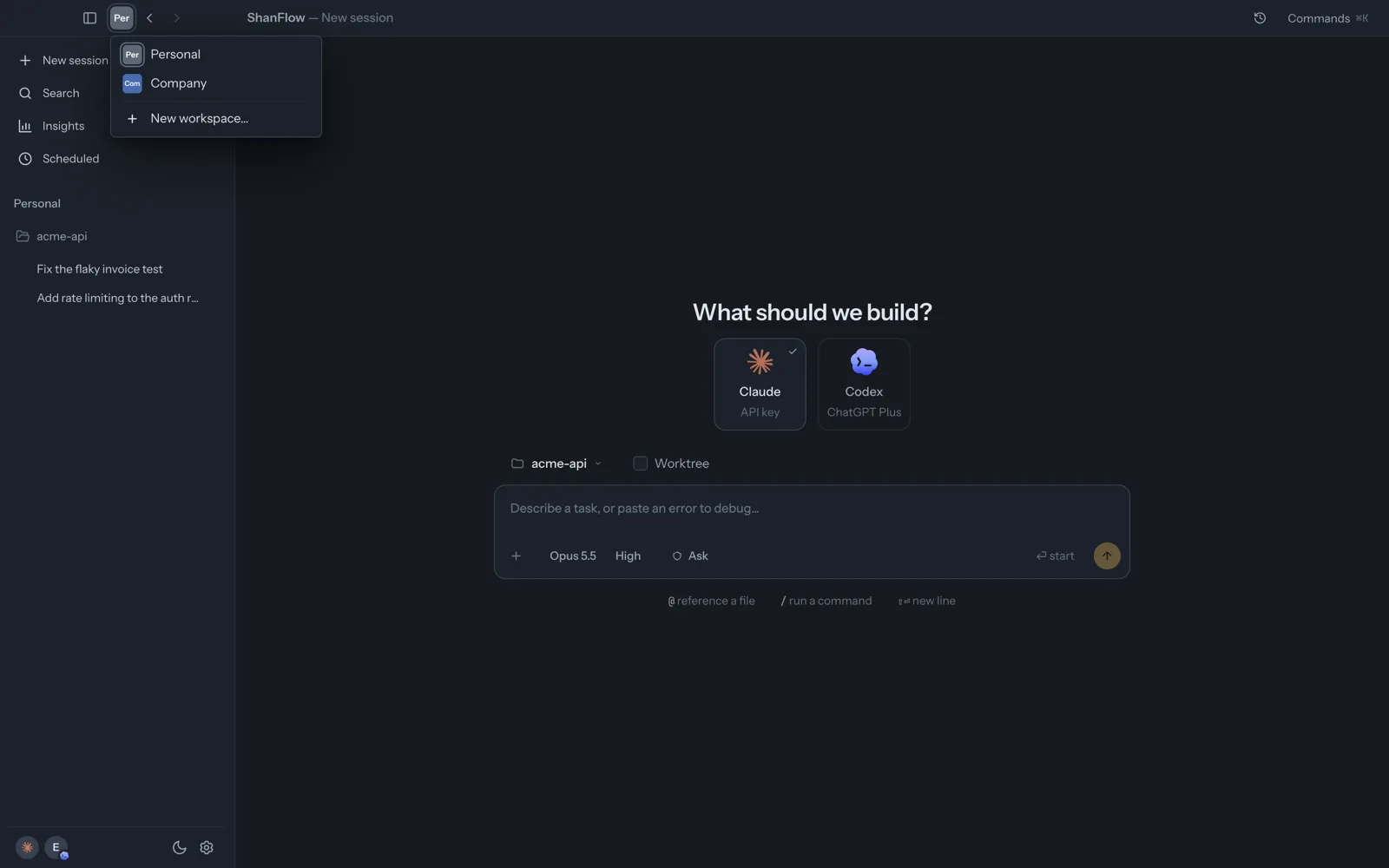
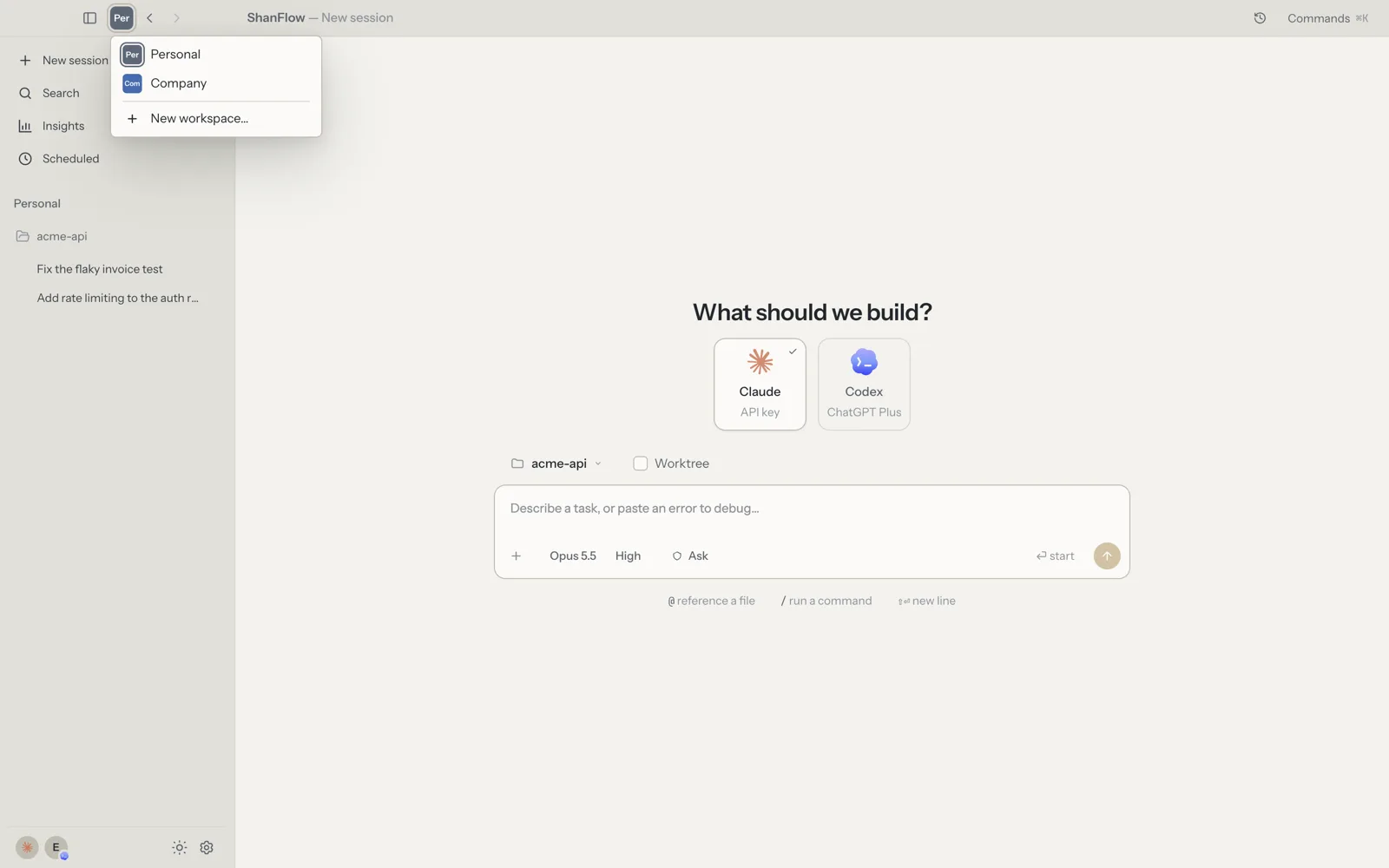
A workspace is a set of projects, for when one list gets long, for example work and personal. The sidebar shows one workspace at a time.
Every install starts with one workspace, Personal. While you have only one, no switcher appears. Once you have two or more:
- the workspace switcher appears in the title bar. It shows the active workspace as its first letter on a color. Click it to list every workspace and pick one;
- right-click a workspace in the list to rename it, change its color or remove it;
- choose New workspace… in that list to add another;
- ⌃⌘[ and ⌃⌘] (macOS) / Alt+[ and Alt+] (Windows) move to the previous and next workspace;
- right-click a project, choose Move to workspace, and pick where it goes. Each project belongs to exactly one workspace.
Switching workspaces never starts or stops a session. A session in another workspace keeps running, and if it needs you, a dot appears on the switcher. New session, Search and the title bar's recent list only show the active workspace.
Removing a workspace removes its projects from ShanFlow too, and stops their running sessions. ShanFlow asks first. Folders on disk are never touched. Personal can't be removed.
Where sessions live#
- Claude sessions are Claude Code transcripts, saved in
~/.claude/projects/<project>/<session id>.jsonl. This is the same place the Claude Code terminal uses. On Windows it's the.claudefolder in your user folder. - Codex sessions are Codex threads, kept in
~/.codex, where the Codex app and CLI can see them. - ShanFlow's own records (project list, groups, workspaces, settings, session titles) are in its data folder. See Privacy and data.
There's no separate ShanFlow database for the conversation itself. That's why sessions move between tools.
Sessions from the terminal and Codex#
Sessions you start outside ShanFlow show up in it.
- When you add a project, ShanFlow imports the Claude Code sessions already saved for that folder.
- It keeps watching. A session you start later in the Claude Code terminal, or a thread you start in the Codex app or CLI, appears in the open project within about 10 seconds.
- Open an imported session like any other and keep working. It's the same conversation.
Resume a ShanFlow session outside ShanFlow#
Your ShanFlow sessions are ordinary transcripts, so other tools can continue them.
- Claude sessions: in a terminal, go to the project's folder and run
claude -r <session id>. The session id is the file name of its transcript in~/.claude/projects/<project>/. Run it from the project folder, because transcripts are kept per project. ShanFlow sessions don't appear in theclaude -rpicker, so you need the id. - Codex sessions: Codex lists ShanFlow's threads itself. They're stored in
~/.codex.
A session resumed in the terminal is the same conversation, but without ShanFlow's panels, queue and cross-session features.