12 Work
Remote control
Remote control shares one session to the Claude mobile app, so you can read it, send prompts and approve actions from your phone. The session keeps running on your computer. Turning it on sends that session's content off your machine to Claude's service, so read "What it sends" first.
What it needs#
- A Claude session. Codex sessions can't be shared. The switch doesn't appear on them, and
/remote-controlis not offered there. - A Claude account sign-in (a Claude plan). An API key isn't enough.
- Your computer awake, ShanFlow running, and both your computer and phone online. If the computer sleeps or the app quits, the phone can't drive the session.
- The Claude mobile app, signed in to the same account.
Turn it on for a session#
Remote control is per session. It is never on by default, and turning it on for one session doesn't share another.
- Open the session.
- Open Details (⌘I macOS / Ctrl+I Windows). You can also type
/remote-control(or/rc) in the composer, or choose Remote control in the command palette. - In the folder section, switch on Remote control.
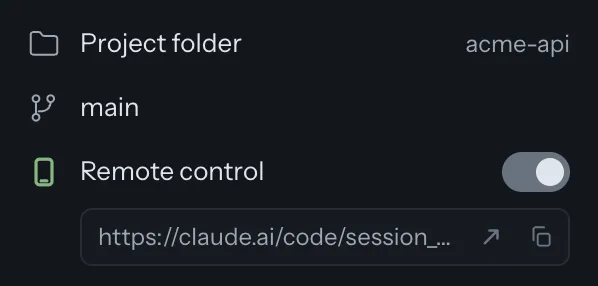
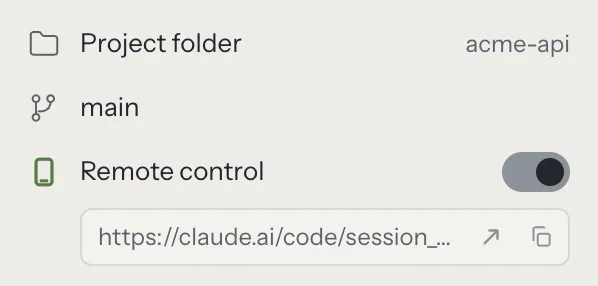
The switch shows Connecting… and then turns on. A link appears under it with Open in browser and Copy link buttons. While the session is shared, a phone icon shows in the title bar. Click it to jump to the switch.
On your phone, open the Claude app and find the session.
What you can do from the phone#
- Read the live thread.
- Send prompts. A prompt either lands in the session or is reported as not sent.
- Answer the agent's questions.
- Approve or deny the agent's actions.
Work you drive from the phone appears in the session on your computer like any other turn.
What the phone can't do:
- It can't change the permission mode. That stays a desktop action. The phone can never switch a session to Bypass.
- It can't skip a confirmation. A cross-session send still needs approval, and a tap on the phone counts as that approval.
What it sends#
While a session is shared, ShanFlow sends it to Claude's service so your phone can show it:
- Your messages and the agent's replies, including its thinking.
- Every tool call with its full input, and every tool result with its full content. That means whole files the agent reads, the full text of its edits, and the complete output of its commands.
- The session title, the model, the full path of the project folder, and the git origin URL and branch. These go once, when sharing starts.
- Each permission request, with the tool and its full arguments.
Turning it on also sends the conversation that already exists in the session, not only what happens next.
ShanFlow sends nothing else about your computer through this, such as its name, operating system or environment. Code and prompts from sessions you haven't shared go only to the model provider you chose.
Turn it off#
Switch Remote control off in Details. Sending stops and the phone can no longer drive the session. It can't take back what was already shared. That copy lives in your Claude account, under that account's normal controls.
If you turn it on again, ShanFlow tells you whether it picked up where you left off or started a fresh view on your phone. A fresh view loses nothing from the session on your computer. It happens after a crash, a quit without stopping, or a sleep.
If it doesn't connect#
The line under the switch says why:
| Message | What to do |
|---|---|
| Sign in to your Claude account, then flip this on again. | Sign in to Claude (Settings › Engines), then switch it on again |
| Can't reach Claude — check your connection. | Check your network |
| Claude hasn't enabled phone control for your account yet. | Nothing you can change here. Try again later |
| This device isn't trusted for your account yet. | Sign in to Claude on this computer, then try again |
| Another device took over. | Switch it on again to take it back |
| Phone control ended. | Switch it on again |