16 Reference
Troubleshooting
The problems people hit most, and what to do about each. If yours isn't here, send us your logs and contact us.
Can't reach ShanFlow#
ShanFlow checks in with its licensing server in the background, about every six hours. If it can't get through for 7 days, the agent stops starting new turns until it reconnects. In the composer, an idle session shows:
Can't reach ShanFlow Check your connection and try again. Retry
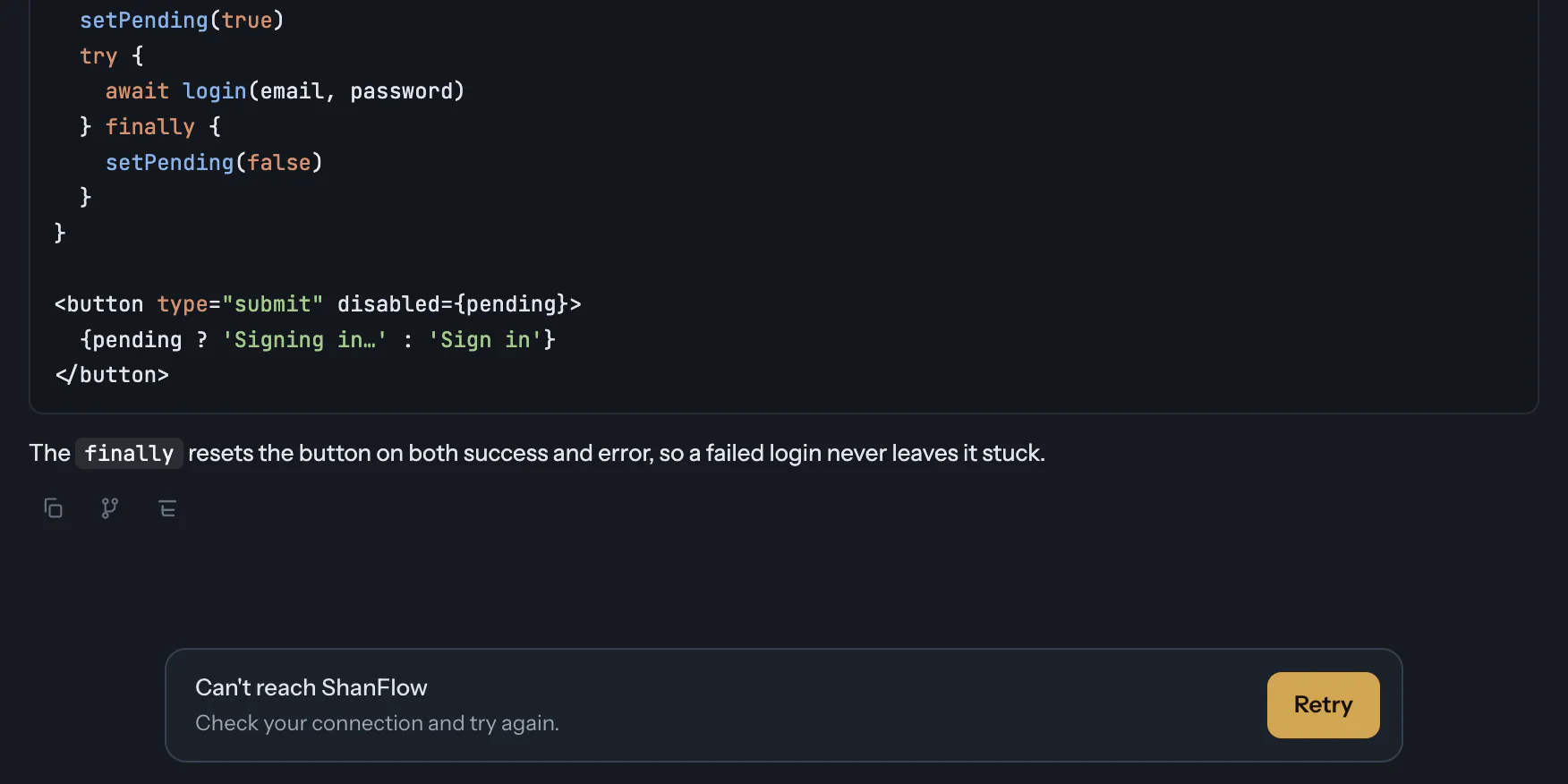
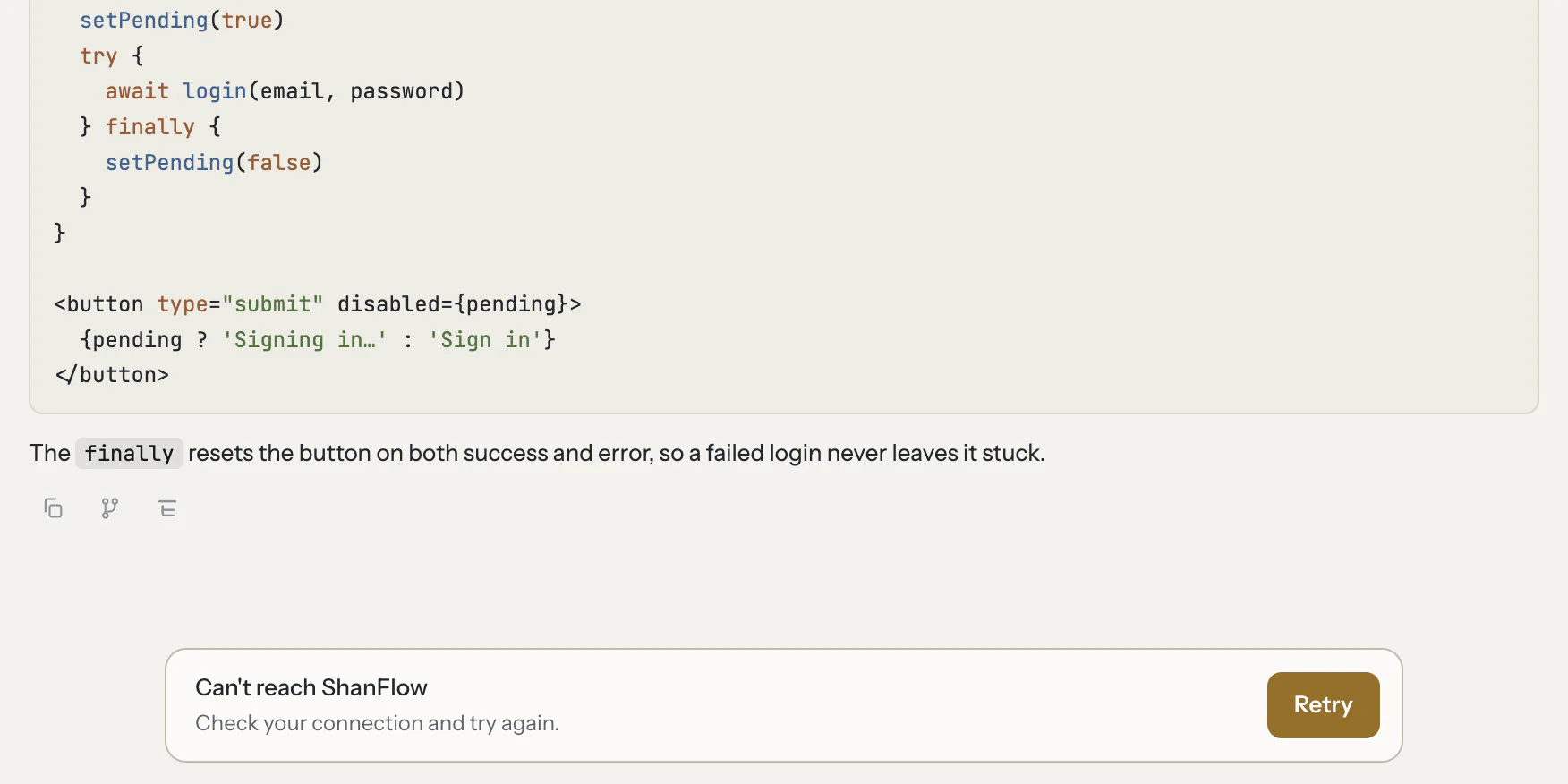
- Check that you're online. A VPN, proxy or firewall that blocks ShanFlow gives the same message.
- Choose Retry. The button shows Checking while it tries. If it works, the message goes away and you can send right away.
- If it fails, the message reads "Still can't reach it." Try another network, then Retry again.
- You can also retry from Settings › License. Last check-in has a Retry button once a check-in is due.
Your sessions, history and settings stay as they are while this shows. A turn that's already running isn't interrupted; the message appears when the session is idle. See License and account.
Engine not found or not signed in#
ShanFlow runs two engines, Claude Code and Codex. You need only one. Settings › Engines shows each one's status, and a session shows a banner when its engine can't run.
Claude#
Claude ships inside ShanFlow, so there's nothing to install. Settings › Claude shows your account and plan.
If a Claude session shows Signed out — sign back in to continue., choose Open settings. If a turn fails with Session expired — run /login, then retry, sign in again as it says, then retry the message.
Codex#
Codex is separate software that ShanFlow finds on your computer. It uses your own Codex login, shared with the Codex app and command line. ShanFlow never sees or stores your credentials.
| Status in Settings | What it means and what to do |
|---|---|
| Not installed | Install the Codex app or the Codex command line, or choose where it is. In Settings › Codex, use Choose… to point at it. On a session, the banner reads Codex not found. |
| Not signed in | In a terminal, run codex login (ChatGPT account) or codex login --with-api-key (OpenAI API key). You can also sign in from the Codex app. Then choose Check again. |
| Sign-in rejected | Codex turned the login down. Run codex login again, then Check again. |
| Unsupported version | This build supports certain Codex versions only. The row names the versions it needs. Install a supported one. |
| Can't start | Wait a minute and choose Check again. If it keeps happening, send your logs. |
To sign out of Codex, run codex logout. That signs out every Codex tool on your computer.
If you installed Codex while ShanFlow was open, choose Check again or restart ShanFlow so it sees the install.
Plan limit reached#
Plan limits come from your Claude or ChatGPT plan, not from ShanFlow.
- When you're close, a Near your plan limit sheet appears. At the limit it reads Plan limit reached, with when the limit resets. Keep going closes the sheet. It lists your running sessions and lets you stop any of them.
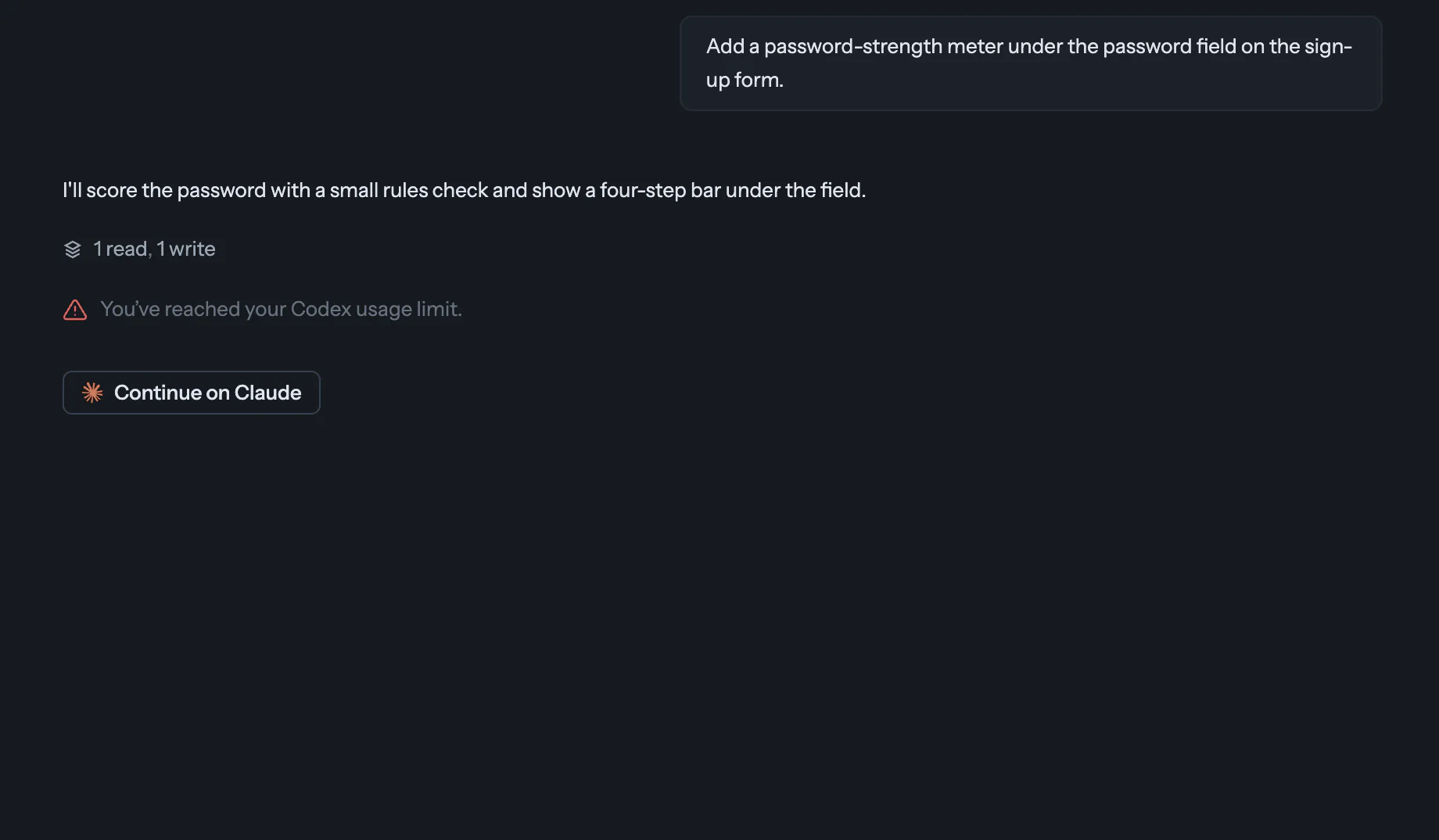
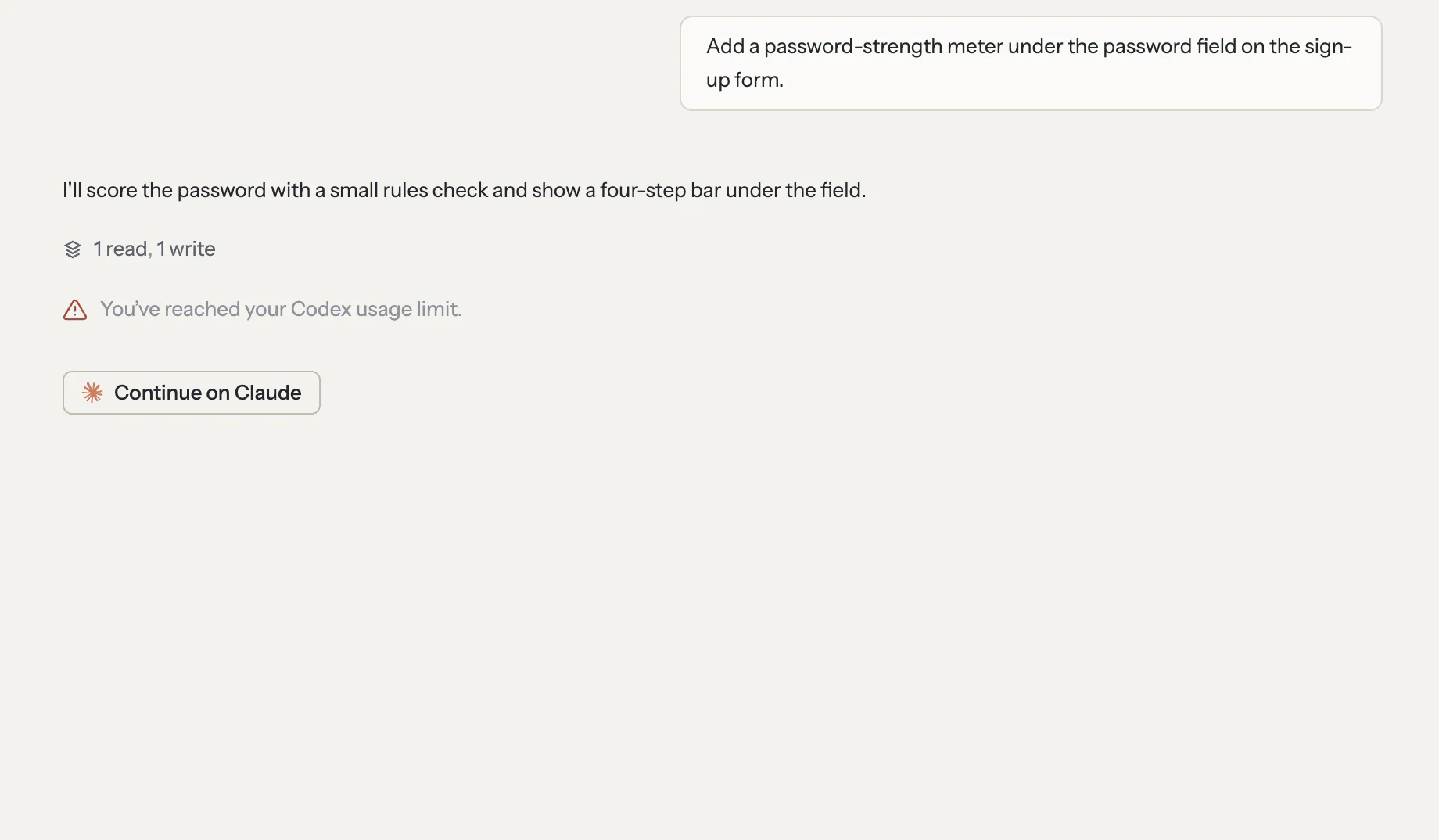
- When a turn runs into the limit, the thread says so, for example You've reached your Codex usage limit. Wait for the reset time and send again in the same session.
- If you have both engines signed in, the notice also offers Continue on Claude (or Continue on Codex). It forks the session onto the other engine, carrying the conversation over.
- You can also fork any answer to the other engine from the fork button under it, or type
/fork codexor/fork claude. - An API key on either engine bills by use instead of using a plan limit.
Turn on Notify when the agent needs you in Settings › General to get a system notification when a limit is nearly used up.
A session is stuck or stalled#
Read the status line under the thread first. It tells you what the session is waiting for.
| Status line | What it means |
|---|---|
| Waiting on you — permission … or — a question to answer | The agent stopped to ask you. Answer the card in the thread. Press ⌥⌘A (macOS) / Ctrl+Shift+W (Windows) to jump to a session that is waiting. |
| Retrying 2/5… | The provider returned an error and ShanFlow is retrying on its own. |
| Waiting on the API — 25s… | The provider hasn't answered for over 15 seconds. This usually clears. If it runs for minutes, check your connection and the provider's status page. |
| Waiting on a background task… | The agent started a command that is still running. See Background tasks (⌘T / Ctrl+T). |
If none of these applies and nothing moves:
- Press Stop in the composer, or press Esc until nothing is left to close and then once more.
- Send your message again. The thread keeps everything up to that point.
- If the same session stalls again, fork it from the last answer with the fork button and continue there.
Other messages you may see: Context window was full (compact the session or start a new one, see Context and memory) and … servers are overloaded — please retry (wait a moment and retry).
The install was blocked#
macOS: Gatekeeper#
macOS checks every app you download from the internet before it opens. If it says ShanFlow can't be opened, can't be verified, or is damaged:
- Download it again from shanflow.dev/download. Don't use a copy from anywhere else.
- Drag ShanFlow to Applications and open it from there, not from the disk image.
- Open System Settings › Privacy & Security and choose Open Anyway next to the ShanFlow message.
Windows: SmartScreen#
SmartScreen can warn about a new release until enough people have installed it. Choose More info, check that the publisher is ShanFlow's, then choose Run anyway. If the publisher is missing or different, don't run it, and contact us.
An update failed#
Download the latest installer from shanflow.dev/download and install it over the current version. Your sessions and settings are kept, because they live outside the app.
Send logs without code or secrets#
Logs record what the app did, not your project files. They can still include project paths, session IDs and error text, so look before you send.
macOS: logs are in ~/Library/Logs/ShanFlow. In Finder, choose Go › Go to Folder… and paste that path.
Windows: logs are in %APPDATA%\ShanFlow\logs. Paste that path into the File Explorer address bar.
- Send only
main.log, or the file we ask for. Each log file is capped at about 5 MB. - Open it and search for anything private, such as API keys, tokens or paths you don't want to share. Delete those lines.
- Say what you were doing, and your ShanFlow version and operating system.
Don't send your project folder, your Codex folder, or the whole ShanFlow data folder. Don't paste code, keys or secrets into a support message. If we need more, we'll tell you how to send it safely.
Trial ended or license lapsed#
Two messages can replace the composer:
- Your trial has ended, with Get a license…. Choose it to buy or activate a license. See License and account.
- Can't reach ShanFlow, if you have a license but ShanFlow couldn't check in for 7 days. Retry as above. Settings › License shows Check-in needed.
In both cases only the agent stops: the composer won't start new turns, and scheduled tasks don't run. Everything already on your computer stays: your sessions, their history, your projects and your settings. Sign out in Settings › License also keeps your sessions.