10 Work
Tools around the thread
The right-hand rail opens the tools you use next to a session: details, the browser, files, changes and a terminal. This chapter covers the terminal, the file browser and viewer, the in-app browser, the command palette and search, and where each panel appears.
Open a tool from the rail#
The rail runs down the right edge of a session. Its tiles, top to bottom, are Details, Browser, Files, Changes and Terminal. Click a tile, or press its key. Press it again to close the panel.
| Tool | macOS | Windows |
|---|---|---|
| Details | ⌘I | Ctrl+I |
| Browser | ⌘L | Ctrl+L |
| Files | ⌘E | Ctrl+E |
| Changes | ⌘D | Ctrl+D |
| Terminal | ⌃` | Ctrl+` |
| Background tasks | ⌘T | Ctrl+T |
The tiles are also numbered. ⌘1 to ⌘5 (macOS) / Ctrl+1 to Ctrl+5 (Windows) open the first to fifth tile. Hold ⌘ / Ctrl to see the numbers. ⌘⌥B (macOS) / Ctrl+Shift+B (Windows) shows or hides the rail's panel area. The ⋯ tile holds Side chat, Background tasks and Keep computer awake (see Running many sessions).
Choose where a panel appears#
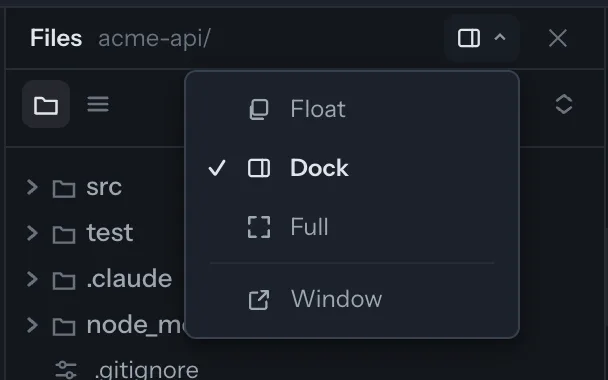
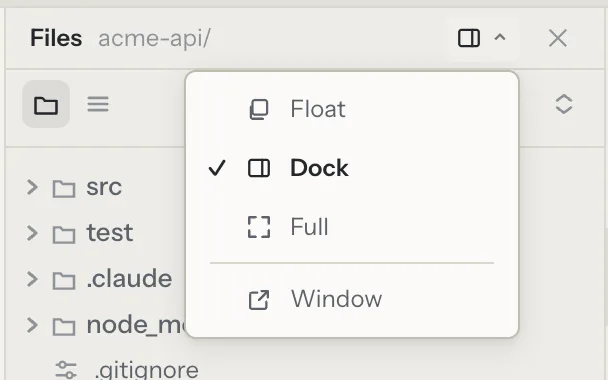
Each tool has a placement control in its header: an icon with a small arrow. Click it and pick a placement.
| Placement | What it does |
|---|---|
| Popover | A small panel that closes when you click away |
| Float | A panel over the thread, beside the rail. The thread stays visible and a click on it closes the panel |
| Dock | A column beside the thread, which stays usable |
| Full | Takes the center column. The sidebar and rail stay |
| Window | Its own operating-system window, for a second monitor |
Not every tool offers every placement:
- Details: Popover, Float, Dock, Full.
- Files, Changes, Terminal: Float, Dock, Full, Window.
- Browser: Dock, Full, Window.
- Background tasks: Popover, Float, Dock, Window.
- Side chats: Popover, Float, Dock.
A window opens only when you pick Window, never from the rail tile. There is one window per session for Changes, Browser and Background tasks, and one per project for Files and Terminal. Pressing the tile again while its window is open brings that window forward. ⌘W (macOS) / Ctrl+W (Windows) closes the focused panel or window. It never closes the main window.
Use Esc to close the topmost panel. One press closes one thing.
Use the terminal#
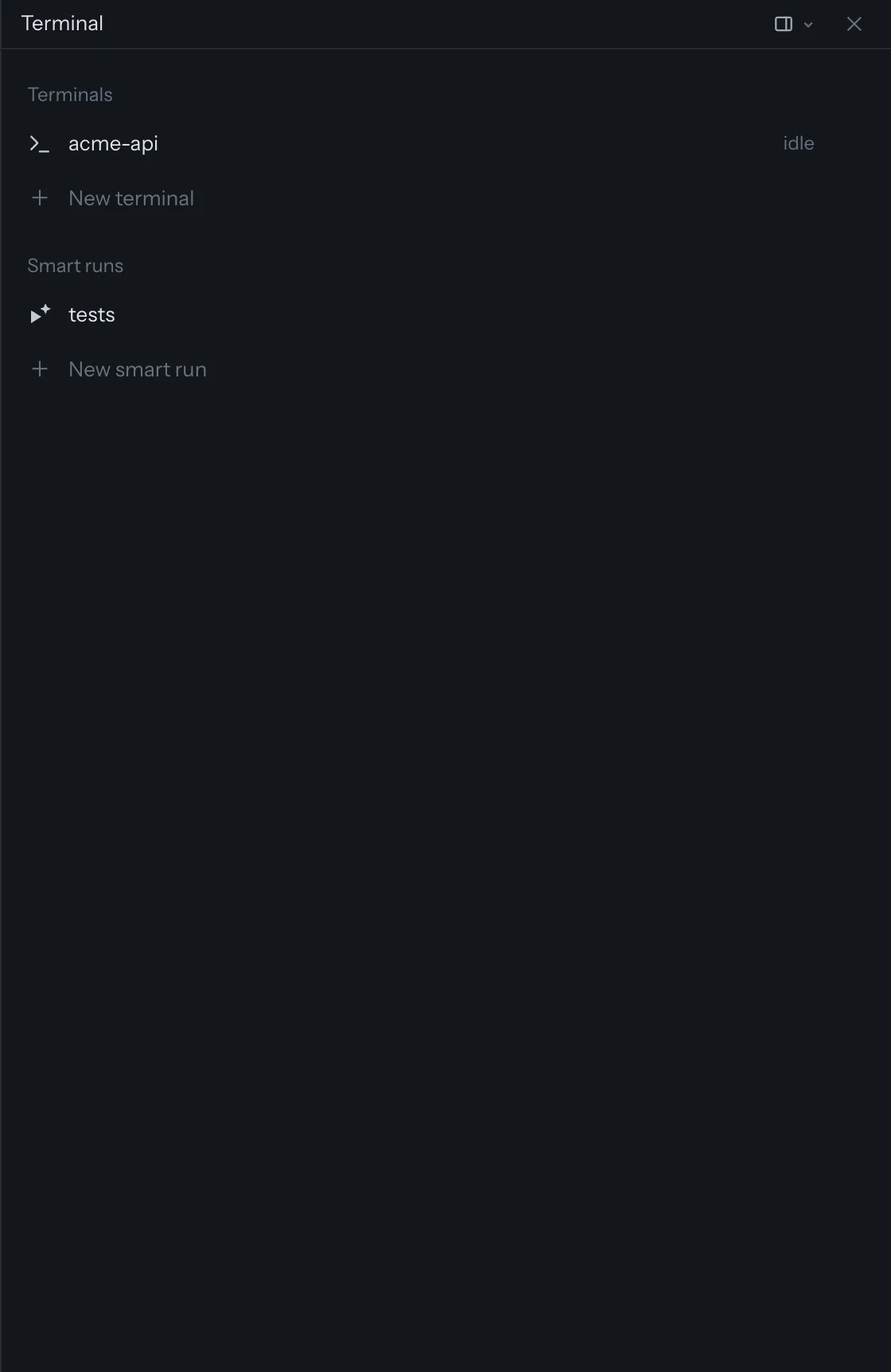
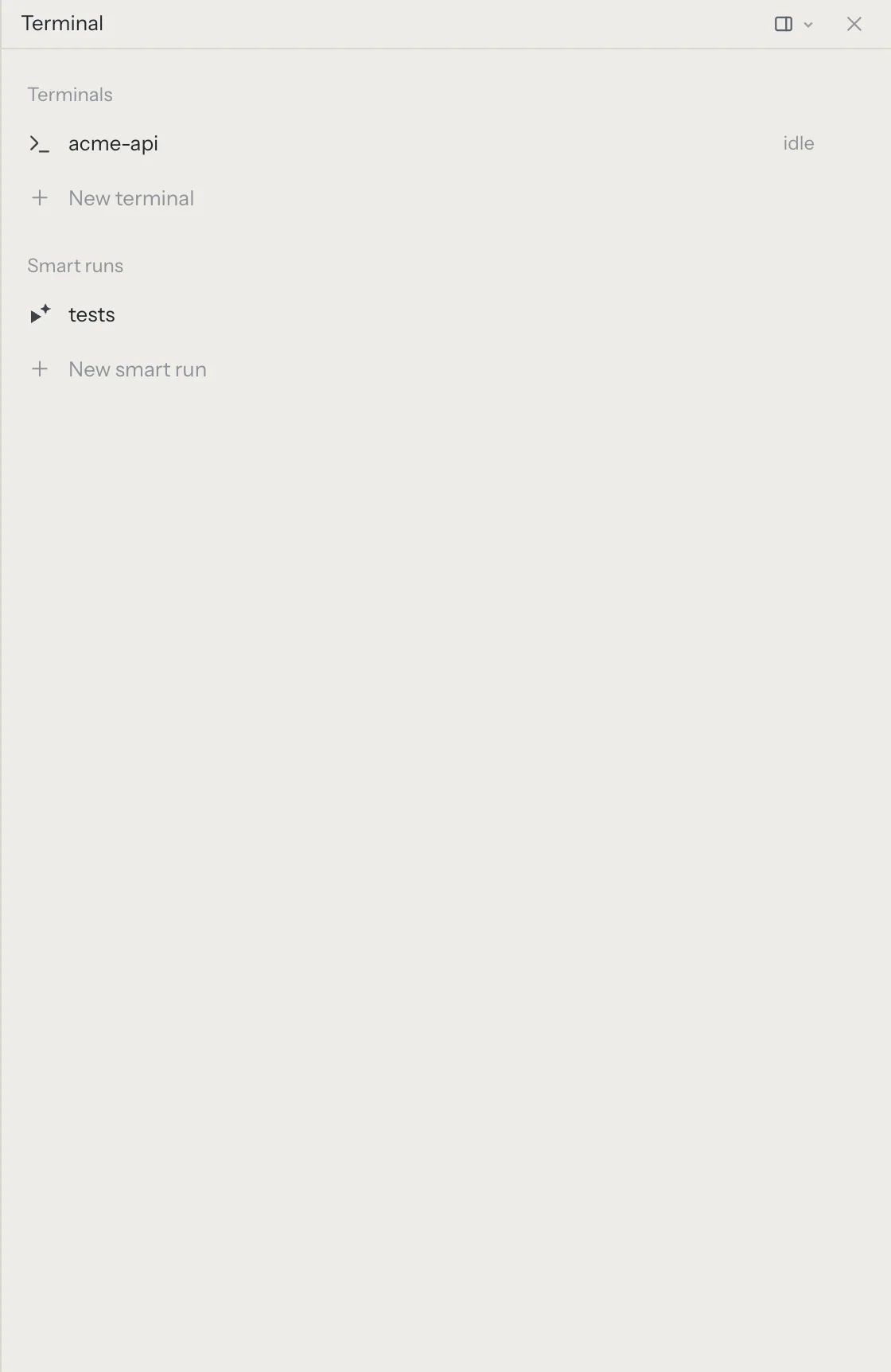
The terminal is a real shell. You type, and it answers live. It starts in the session's folder. For a session in its own worktree, that is the worktree.
- Press ⌃` (macOS) / Ctrl+` (Windows), or click Terminal in the rail.
- Click New terminal to open a shell. You can have up to 3 running shells in a session.
- Click a row to switch between shells. In Full, the list sits beside the shell.
To copy and paste, use ⌘C and ⌘V on macOS, and Ctrl+Shift+C and Ctrl+Shift+V on Windows. On macOS, ⌘K clears the screen and ⌘F finds in the terminal. Shift+Esc sends Esc to the shell. To remove a shell, use its Remove terminal button. Kill shell ends it.
The agent can use your terminals too. It lists them, reads their output, runs a command in an idle shell and sends keys. Anything that types into a terminal or opens one asks you first, in every mode except Bypass. In Plan mode it can only read. It never types over a line you have started.
Show terminal output to the agent#
Type $ at the start of a word in the composer and pick a terminal. The output at the moment you send goes with your message (the last 200 lines or 16K characters, whichever is smaller). The thread shows the reference, not the output. A message like "fix the error in $dev-server" works without copying anything.
Smart runs#
A smart run is a saved way to start your project, such as a dev server. In the terminal list, under Smart runs:
- Click New smart run.
- Give it a Name and describe What should it do?, or paste the command you would type.
- Click Analyze. Claude writes a start script and a stop script. Nothing runs until you approve both.
Run, stop and edit it from its row. A run shows its output beside the agent's analysis, side by side or stacked. Risky steps ask again before they run, and you can choose Don't ask again for a step.
Browse and read files#
The Files tool shows the project's files without starting a turn. It reads only. To change a file, ask the agent.
- Press ⌘E / Ctrl+E.
- Switch between Folder tree and Flat list. Type in the filter field to narrow by name.
- Click a file to read it in the reader. Click Files (back) to return to the list.
File names carry their git status color. The viewer marks the lines that changed. Markdown, SVG, diagrams and other formats open rendered. Use Rendered and Raw to switch. ⌘F / Ctrl+F finds in the file.
In Full and Window, Maximize gives the reader the whole width, and Restore gives the list back.
Open a file from the thread#
Click a file name in the thread, such as a path the agent printed or a Read or Edit card, to open the quick viewer. It is a small popover. In the quick viewer:
- Enter, or Open in a window, moves the file to its own window.
- Esc closes it.
With a link focused in the thread, Enter opens the quick viewer and ⌘Enter / Ctrl+Enter opens a window. Several files open as tabs in one viewer window. ⇧⌘[ and ⇧⌘] (macOS) / Ctrl+Shift+[ and Ctrl+Shift+] (Windows) switch tabs there. The viewer can open any file you can read, including files outside the project. Opening a file in the viewer doesn't give it to the agent.
Use the in-app browser#
The browser lets you see a web app the agent is building. The agent can use the same pages: open them, read them, click, type and take screenshots. A cursor shows what it is doing, and a mark on the page list says which engine is using a page.
- Press ⌘L / Ctrl+L.
- Type an address, or a file in this project, in the address bar.
- Use Back, Forward and Reload (⌘R / Ctrl+R). ⇧⌘R / Ctrl+Shift+R reloads without the cache.
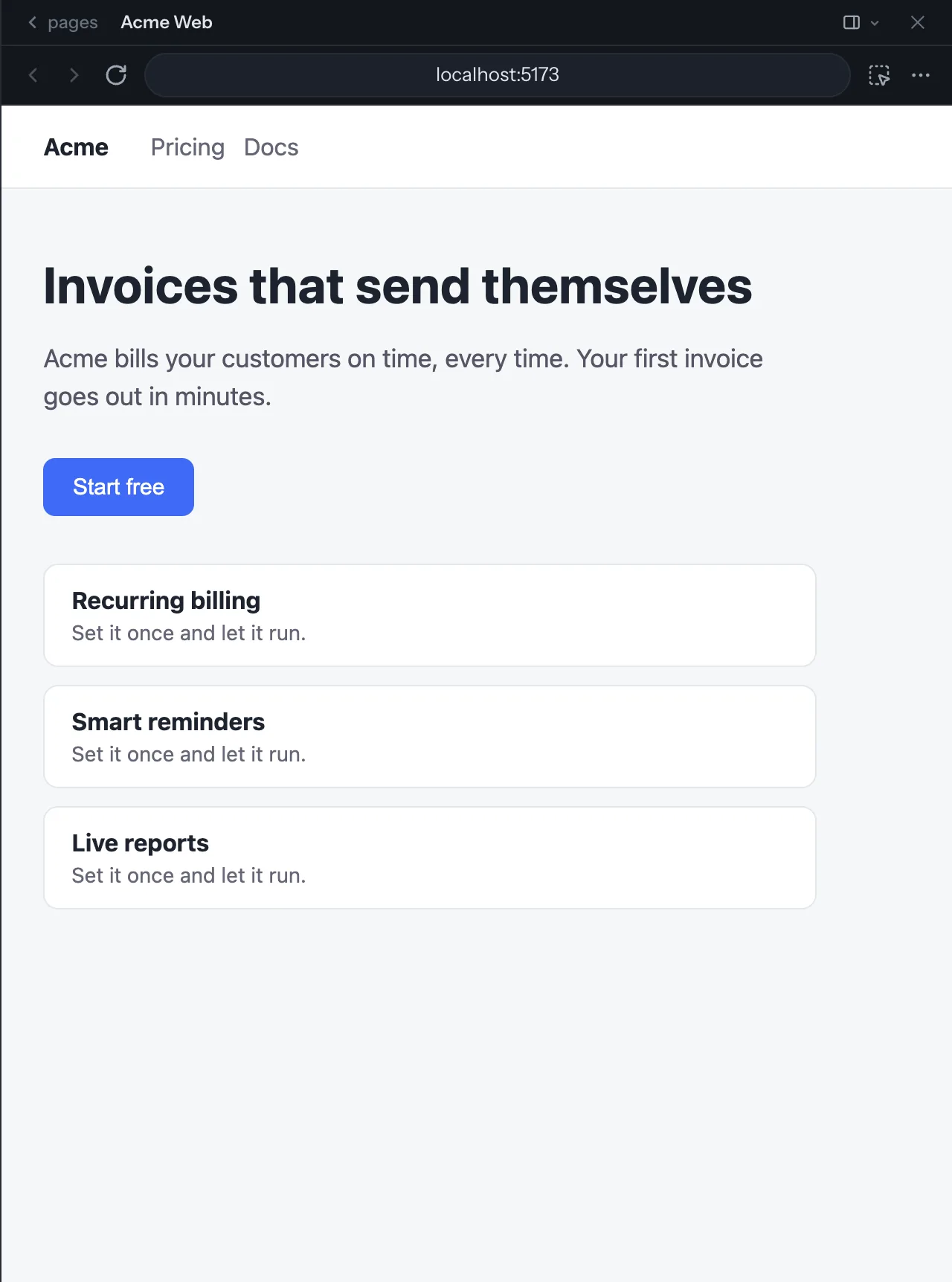
The ⋯ menu has Find in page, Print…, zoom, Device size, Downloads, History, Screenshot to message, Open in your browser and Copy address. Cookies and history are kept per project. You can clear them in Settings › Project › Browser.
To point at something on a page, click Annotate and drag a box on the page, or click an element, then write a note. The marks and a screenshot go with your next message. Nothing goes until you send it. What you typed into a page field is never sent.
While the agent holds a page, take over first before you zoom, resize or annotate.
Find things fast#
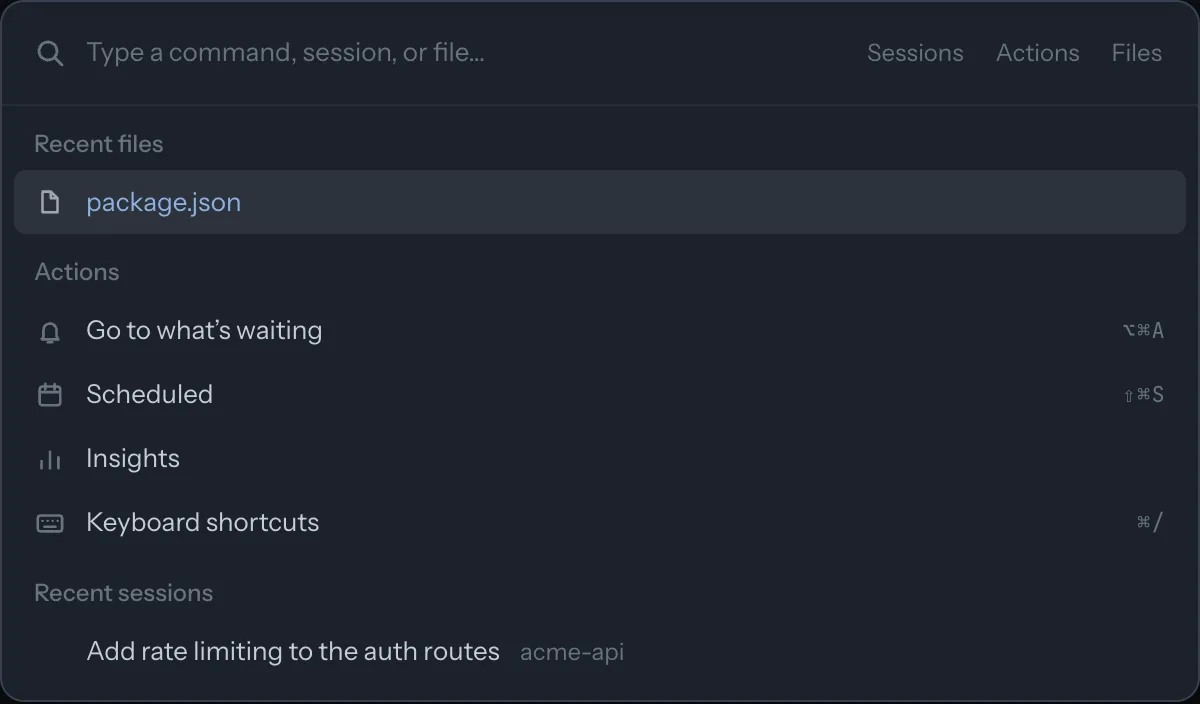
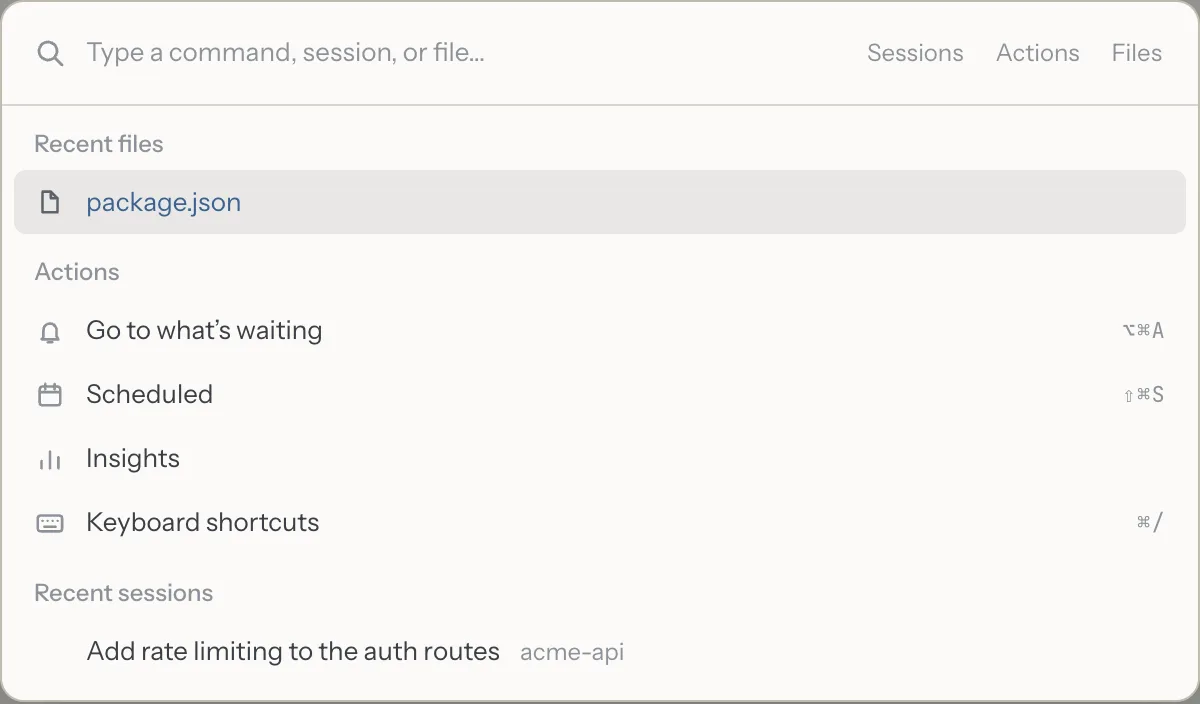
All three menus open over the thread. Esc closes them.
- Command palette. ⌘K / Ctrl+K (also ⇧⌘P / Ctrl+Shift+P). Empty, it lists recent files, actions and recent sessions. Type to search files, actions, sessions and workspaces. The pills Sessions, Actions and Files narrow the list. Tab cycles them. Start with
#for sessions or@for files. - Go to File. ⌘P / Ctrl+P opens the palette with Files on. ⌘O / Ctrl+O opens it with Sessions on. ⇧⌘A / Ctrl+Shift+A opens it with Actions on.
- Search all sessions. ⇧⌘F / Ctrl+Shift+F, or Search in the sidebar. It searches the text of your prompts and the agent's answers in every session, including archived ones. Use Scope to limit it to some projects or one session, and Arrange to sort by date or alphabet, or group by project. Enter opens the thread at the passage. Search never changes a session.
Inside a session, ⌘F / Ctrl+F finds in the thread.