09 Work
Running many sessions at once
You can run as many sessions as you like, on either engine, and switch between them without stopping any. This chapter covers how to see which session needs you, keep parallel sessions from editing the same files, and hand work between sessions.
See which session needs you#
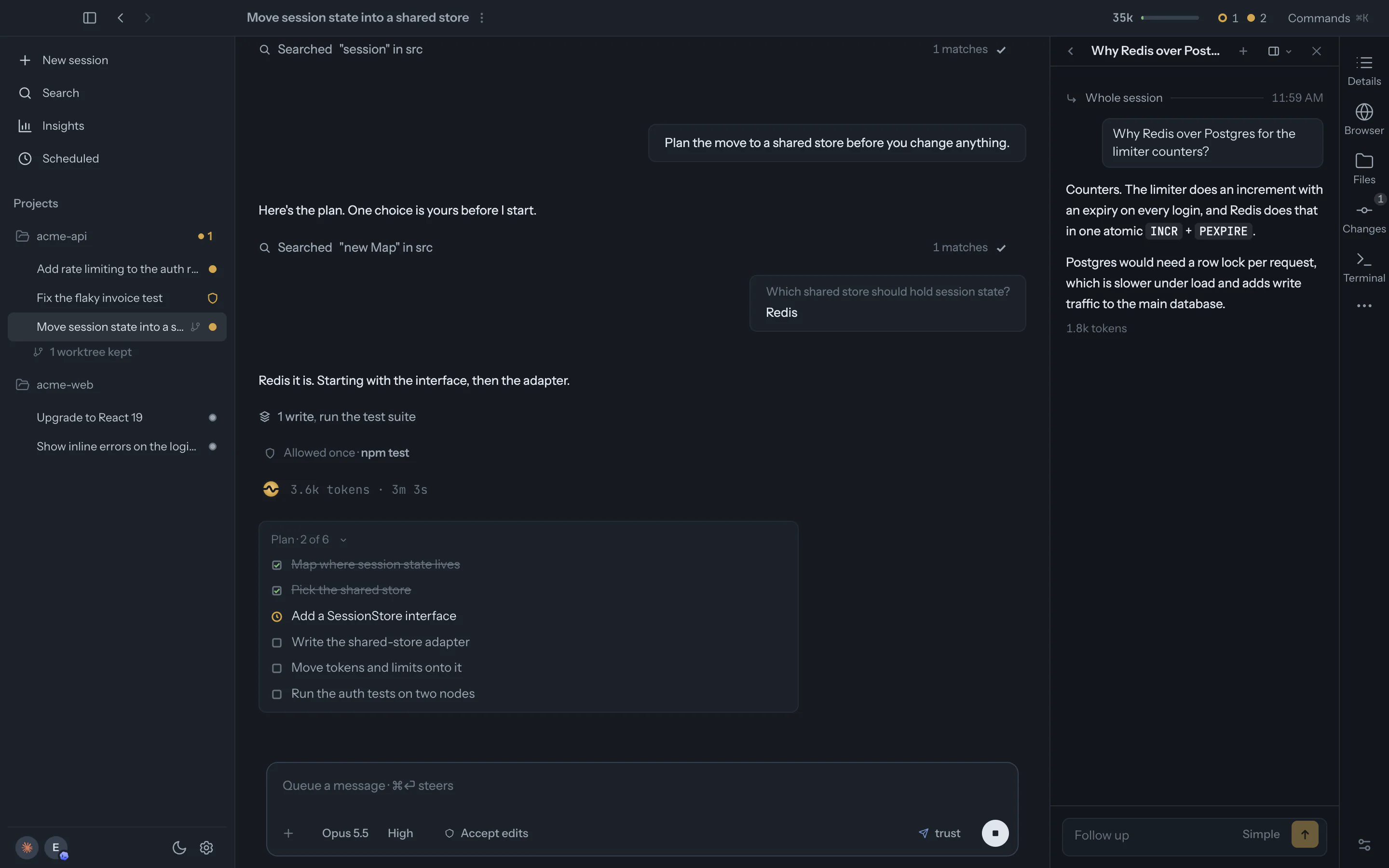
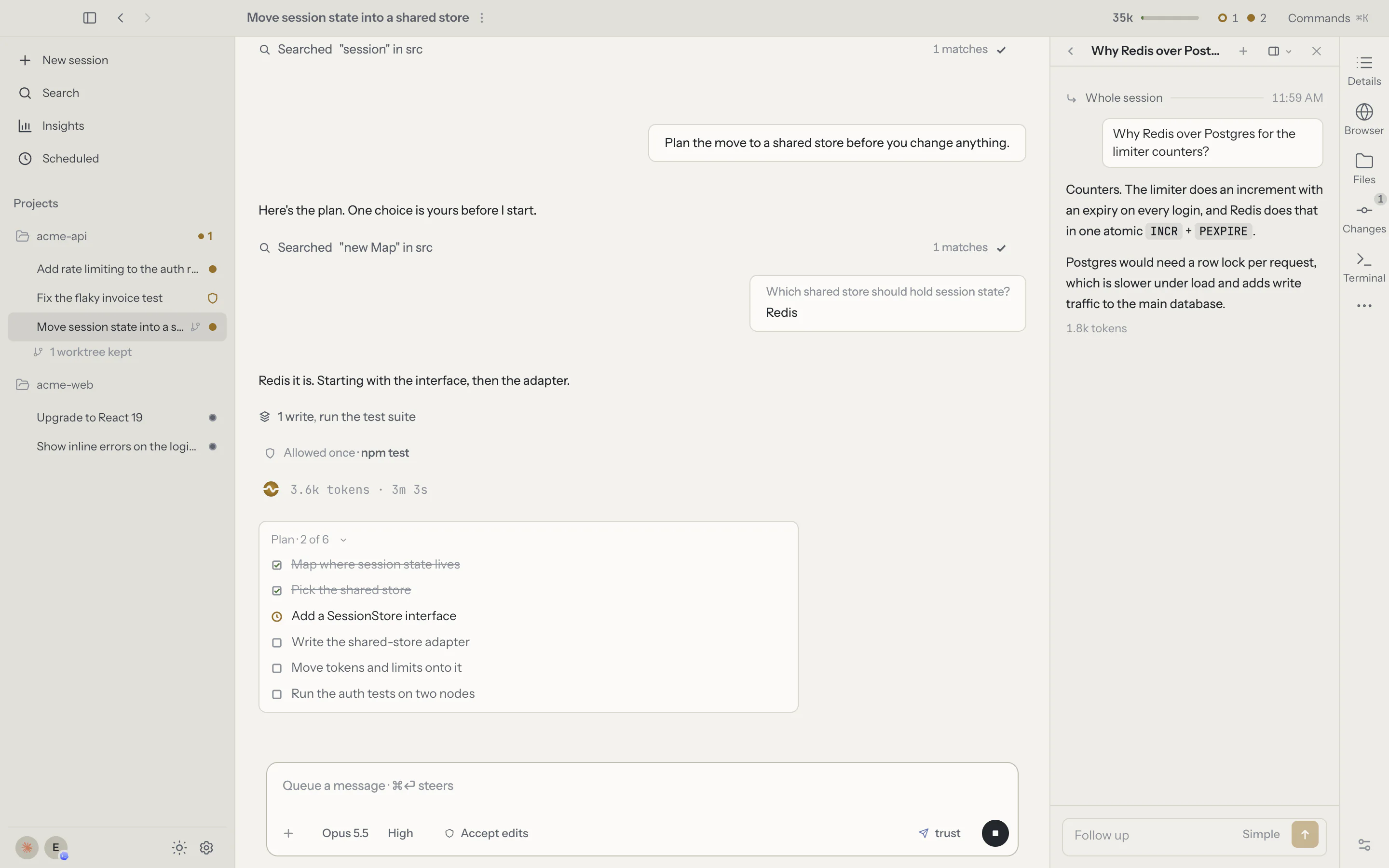
Each session row in the sidebar ends with a status mark. Hover over the row for the exact words.
| Mark | Meaning | Hover text |
|---|---|---|
| Running dot | The agent is working, or a background task is running | |
| Shield | Waiting for you to approve something | Needs you — permission (or the card's own ask, such as send a message) |
| Speech bubble | The agent asked a question | Needs you — question |
| Stopped mark | The turn was stopped | Stopped |
| Error mark | The turn failed | Error |
| Finished dot | The turn finished and you haven't opened the session since | Finished, unseen |
A number next to the title counts unread messages from other sessions.
The title bar's Recent sessions button shows the same counts (for example "1 waiting · 2 running") for the active workspace. Click it to open a list of sessions, most recent first.
Go to the session that is waiting on you#
Press ⌥⌘A (macOS) / Ctrl+Shift+W (Windows).
- If the session you are in has a card waiting, the focus goes to that card.
- Otherwise ShanFlow opens the session that has waited longest and shows a short note naming it.
- If nothing is waiting, it says Nothing waiting.
Switch between sessions#
| To | Press |
|---|---|
| Open the recent-sessions list (keeps open; Tab or arrow keys to step) | ⌃Tab (macOS) / Ctrl+Tab (Windows) |
| Jump back to the last session | ⌃⇧Tab (macOS) / Ctrl+Shift+Tab (Windows) |
| Go to a session by name | ⌘O (macOS) / Ctrl+O (Windows) |
| Previous or next session | ⌘[ and ⌘] (macOS) / Ctrl+[ and Ctrl+], or Ctrl+PageUp and Ctrl+PageDown (Windows) |
| Show the open session's row in the sidebar | ⌥F1 (macOS) |
Switching never interrupts a running session.
If you keep several workspaces, the title bar shows a tile with the active workspace. Click it to switch. A dot on the tile means a session in another workspace is waiting on you. Use ⌃⌘[ and ⌃⌘] (macOS) / Alt+[ and Alt+] (Windows) to step between workspaces. To move a project to another workspace, open the project's ⋯ menu and choose Move to workspace.
Give a session its own worktree#
Two sessions that edit the same project at once write to the same files. A worktree gives a session its own copy of the project folder and its own branch, so the sessions can't collide. The sessions share the same git history.
- Start a new session (⌘N / Ctrl+N).
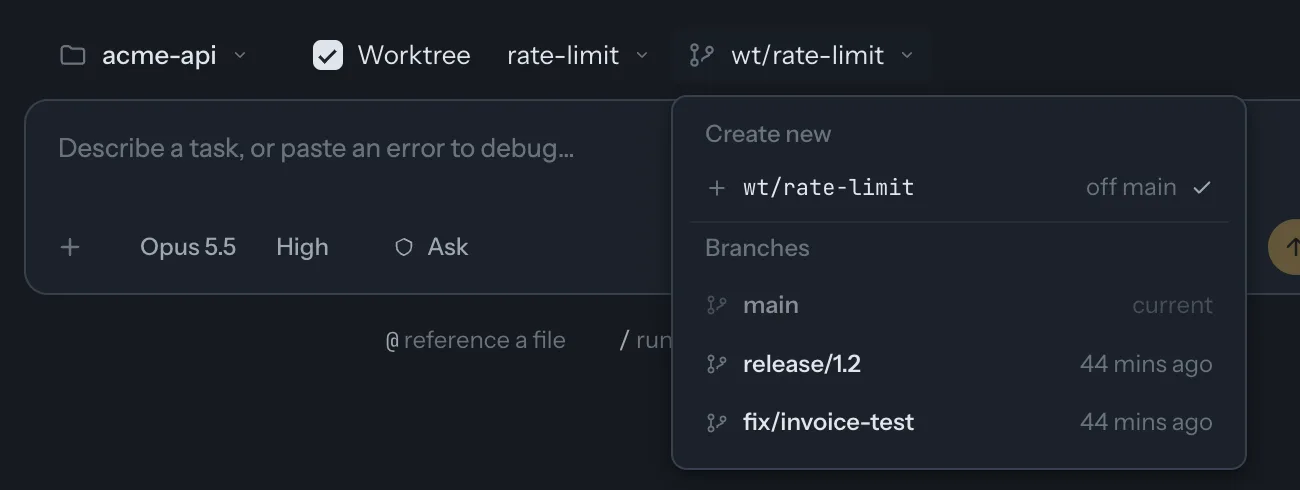
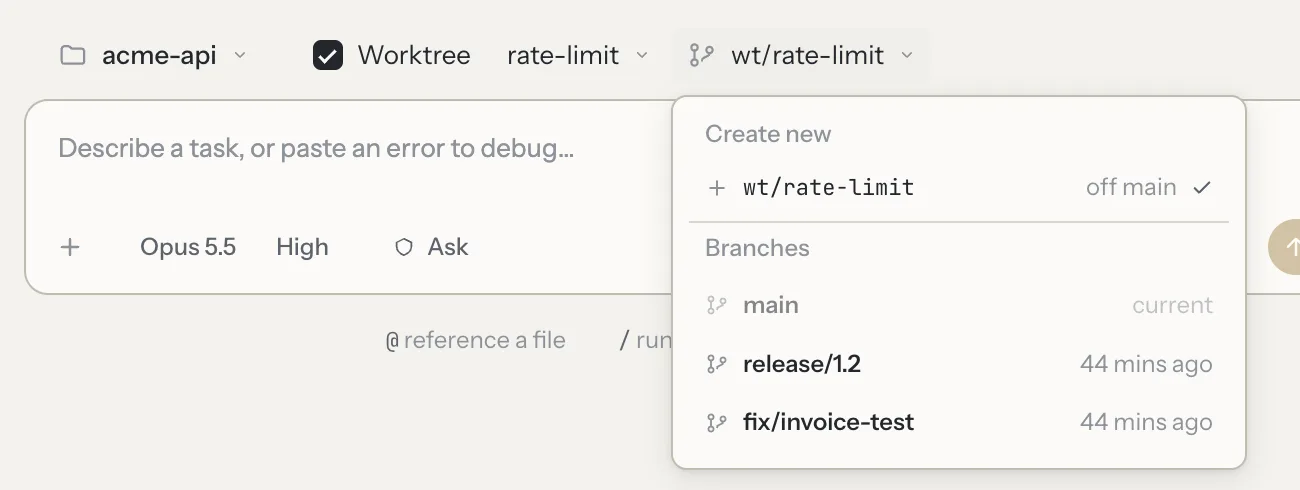
- In the setup strip, check Worktree. If the project isn't a git repository yet, the strip offers Initialize git first. A project with no commits can't use a worktree until it has a first commit.
- Optional: click the name pill to change the worktree name, or the branch pill to pick another branch or type a new one. The default branch is
wt/plus a short name taken from your first message. - Send your first message.
The session row gets a branch mark, and its tooltip reads Isolated on the branch name. The worktree lives in .claude/worktrees/ inside the project. Choose isolation when you start the session. You can't change it later.
You can also pick New isolated session in the command palette (⌘K / Ctrl+K).
A fresh worktree contains only tracked files. If the project needs untracked files such as .env, list them in a .worktreeinclude file at the project root, using the same patterns as .gitignore. ShanFlow copies the matching ignored files into each new worktree.
Keep or discard a worktree when you delete the session#
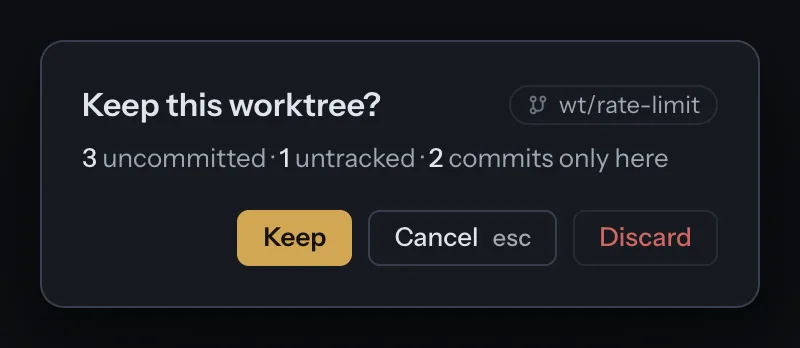
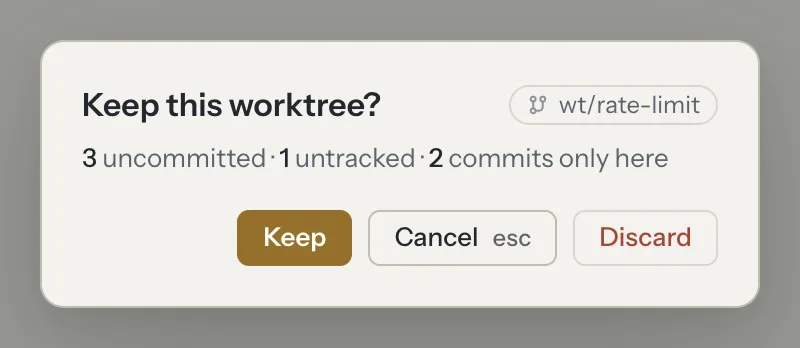
When you delete a session that owns a worktree with uncommitted files, untracked files or commits that exist only on its branch, ShanFlow asks Keep this worktree? and says what is at stake (for example "5 uncommitted · 1 untracked · 2 commits only here").
- Keep leaves the worktree and branch on disk. The project shows a 1 worktree kept row under it.
- Discard deletes the branch and any unmerged work.
- Cancel closes the sheet.
A session with nothing to lose removes its worktree without asking.
Click the worktree kept row to open Kept worktrees. Open starts a new session in that worktree. Remove… asks again before deleting.
Ask a side chat#
A side chat is a short conversation about the session that never touches the main thread. It reads the session but never writes to it.
- Press ⌘; (macOS) / Ctrl+; (Windows), or type
/side(or/btw) in the composer. - Type your question and press Enter.
The panel opens where you left it, as a list of your side chats or as one conversation. Use the + button for a new side chat, and follow up in the same field. Several side chats can answer at the same time. Side chats are kept when you restart the app. Hover over a row in the list and click the ✕ to delete one.
A side chat can read the project's folders without asking. It asks before it reads a web site, with Allow (for this side chat only) or Don't allow. Switch Simple answers on for short, plain replies.
To start a side chat about a message, select text in the thread and use Ask in side chat. Side chats count toward the session's tokens.
Start a nested session#
A session can hand a task to a new session and get the result back. This is useful for a review by the other engine, or for work that deserves its own model, folder or permissions.
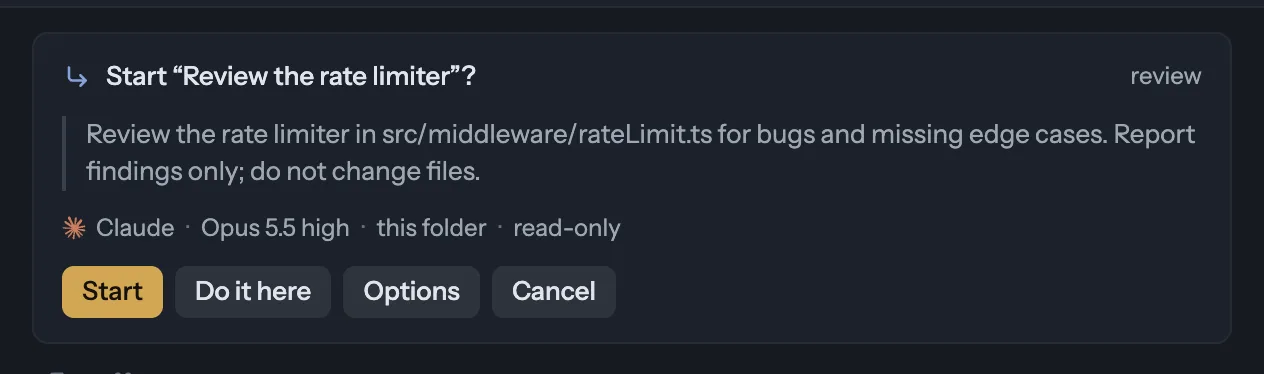
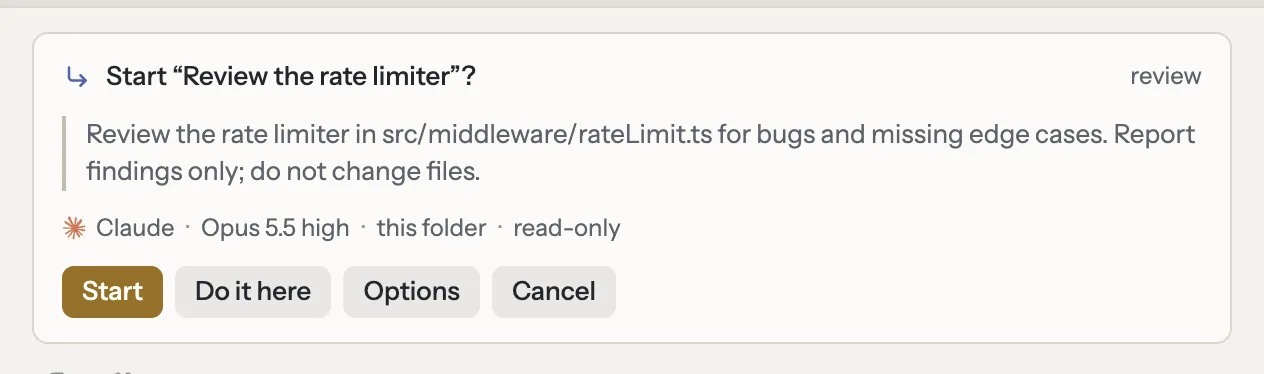
You ask in plain words ("have Codex review this change"), or the agent offers. Nothing starts until you answer a card in the thread:
- Start runs it as its own session.
- Do it here has the current session do the task itself.
- Options changes the engine, model, folder (or a new worktree) and permission mode first.
- Cancel declines. The agent is told you said no.
When several tasks are proposed together, the card offers Start all and Skip per task. When you start several writing sessions at once in a git project, each gets its own worktree. A review session is always read-only and reads the project folder as it is, so it sees uncommitted changes.
The child session is listed under its parent in the sidebar. Use the arrow on the parent to fold the children. When a child finishes, the parent is told. Rules to know:
- A child can't start children of its own.
- A parent and its own child can message each other without a confirmation card.
- Detach (in the child's row menu) stops the reports and makes it an ordinary session.
- Archiving a parent archives its children. Deleting a parent detaches them.
Send a message to another session#
Ask the agent in plain words ("tell the review session the tests pass now"), or use /send-message in a Claude session. The agent finds the session by name, drafts the message and shows a card:
Send to "session name"? with Send and Cancel.
Every send needs your approval, in every permission mode, including Bypass. The message arrives in the other session as a new turn, marked with the session it came from. Sessions can message each other when they are in the same project or in projects you linked (Link projects… in the project's menu).
This works between engines. A Claude session can message a Codex session and the other way round.
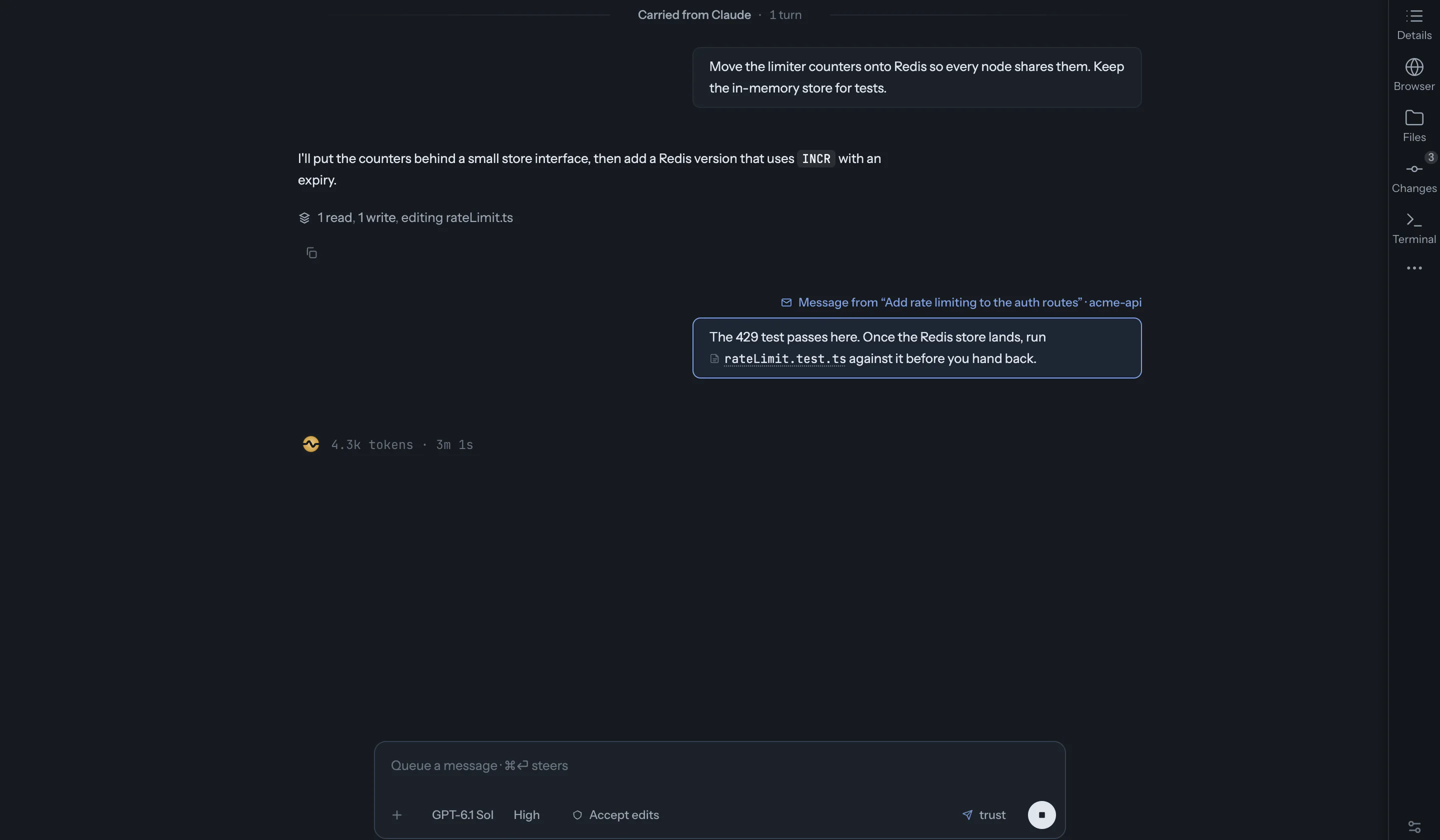
To stop confirming for particular sessions, click the trust pill in the composer, then tick the sessions you trust or choose Trust all. This removes only the send confirmation, only for the sessions you pick. Edits and commands still follow the permission mode.
Press ⇧⌘; (macOS) / Ctrl+Shift+; (Windows) to list the sessions this one talks with, and open a conversation from the list.
Watch background tasks and sub-agents#
When the agent runs work in the background (a sub-agent, a long command, a monitor, a workflow), it appears in the Background tasks panel.
- Press ⌘T (macOS) / Ctrl+T (Windows), or open the ⋯ menu at the bottom of the right-hand rail and choose Background tasks.
- Use the filter chips to show Sub-agents, Commands, Monitors or Workflows.
- Click a task to see its detail. The back arrow returns to the list. Closing the detail doesn't stop the task.
- To stop everything, click Stop all and confirm. The confirmation names how many tasks are running.
Task cards also appear in the thread as the work goes. A session with a background task running shows as running in the sidebar.
Schedule a prompt#
A schedule runs a prompt for you at a set time, or repeatedly, without you at the keyboard. ShanFlow runs it, so it behaves the same on both engines.
- Click Scheduled in the sidebar (⇧⌘S on macOS, Ctrl+Shift+S on Windows).
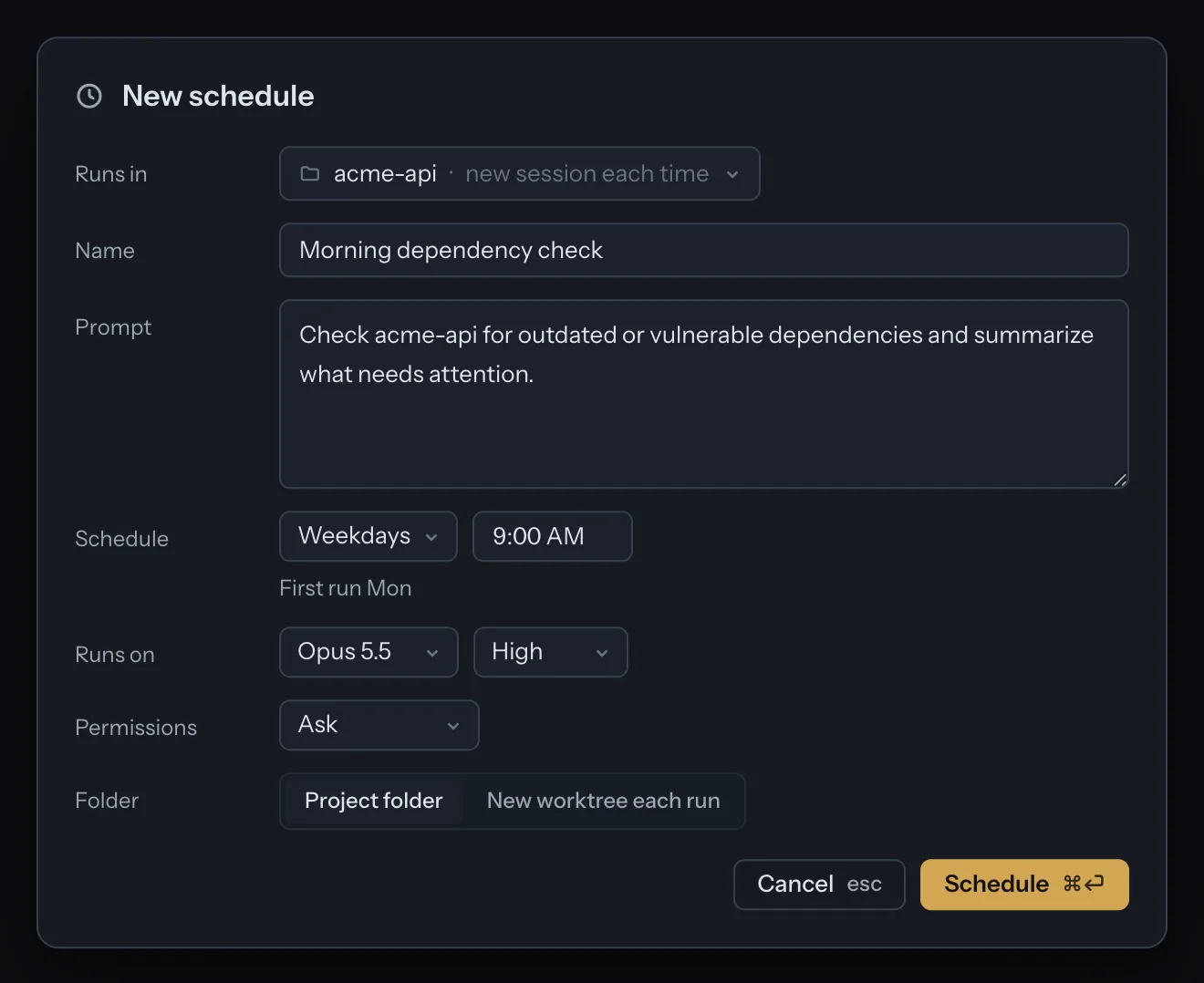
- Click New schedule. You can also right-click a session and choose Schedule a prompt….
- In Runs in, pick a project (every run is New session each time) or an existing session.
- Write the Prompt. Each run in a new session starts fresh, so the prompt must stand on its own.
- Pick How often: once, hourly, daily, weekdays, weekly and, for new sessions, every two weeks or monthly. Nothing runs more often than every 5 minutes.
- Under Runs on, choose the engine, model, effort, permissions and whether each run uses the Project folder or New worktree each run.
- Press ⌘⏎ (macOS) / Ctrl+Enter (Windows) to save.
What to know:
- Schedules run only while ShanFlow is open. If the app was closed, a task gets one catch-up run for the most recent missed time.
- A run is skipped when the previous run of the same task is still going.
- A prompt sent into an existing session ends after 7 days.
- If a run needs a permission and nobody answers in about 45 minutes, it is denied and the run carries on.
- A task's page lists its run history. Use Run now, Edit, pause or delete from there.
- Quitting with schedules on warns you that they won't run while the app is closed.
Keep the computer awake during a long run#
By default your computer can go to sleep while an agent works. To prevent that for one session, open the ⋯ menu at the bottom of the right-hand rail and switch on Keep computer awake (Only for this session).
The computer stays awake only while that session has a turn running or a background task running. It sleeps normally the rest of the time. The setting is not saved across restarts.